Snoozing a conversation temporarily removes it from your active inbox until a selected date and time. This helps you keep your inbox clear while making sure the conversation returns when follow-up is needed.
In this article, you will learn how to snooze a conversation in the Saysimple platform.
1. Open the inbox
After logging in, the Saysimple platform opens the inbox automatically, this is where incoming conversations are collected and organized.
2. Go to the conversation you want to snooze
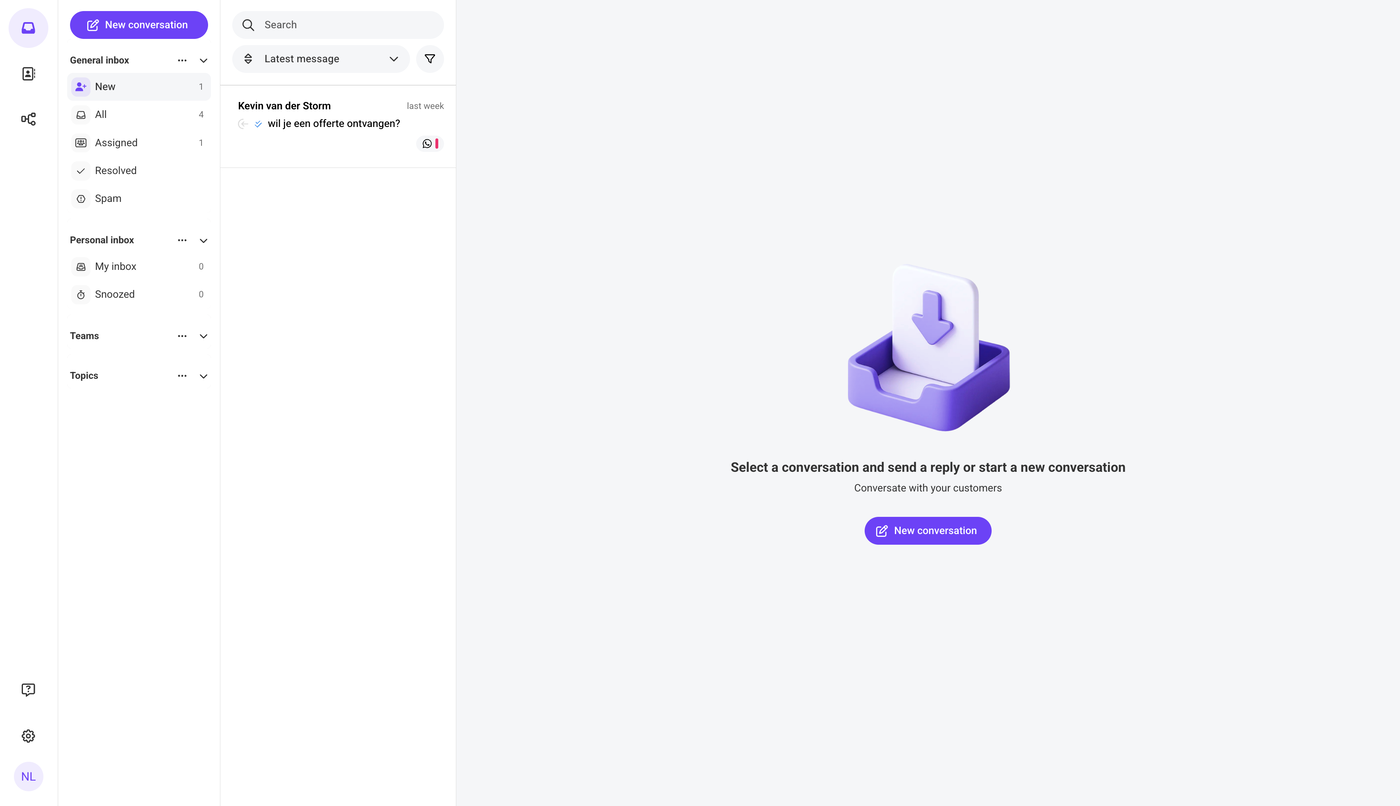
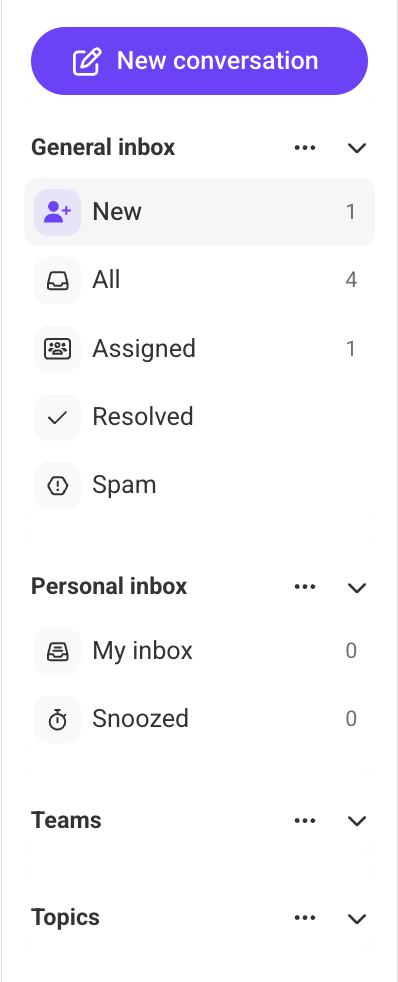
Use the navigation menu on the left side of the screen to find the conversation. You can use one of the available filters, such as New, All, Assigned etc. Depending on where the conversation is located.
3. Open the conversation
4. Click “Snooze conversation”
To snooze a conversation, the conversation must be assigned first. If the conversation has not been assigned yet, assign it to yourself or another user before continuing.
Need to assign a conversation first? Read more about how to assign conversations here.
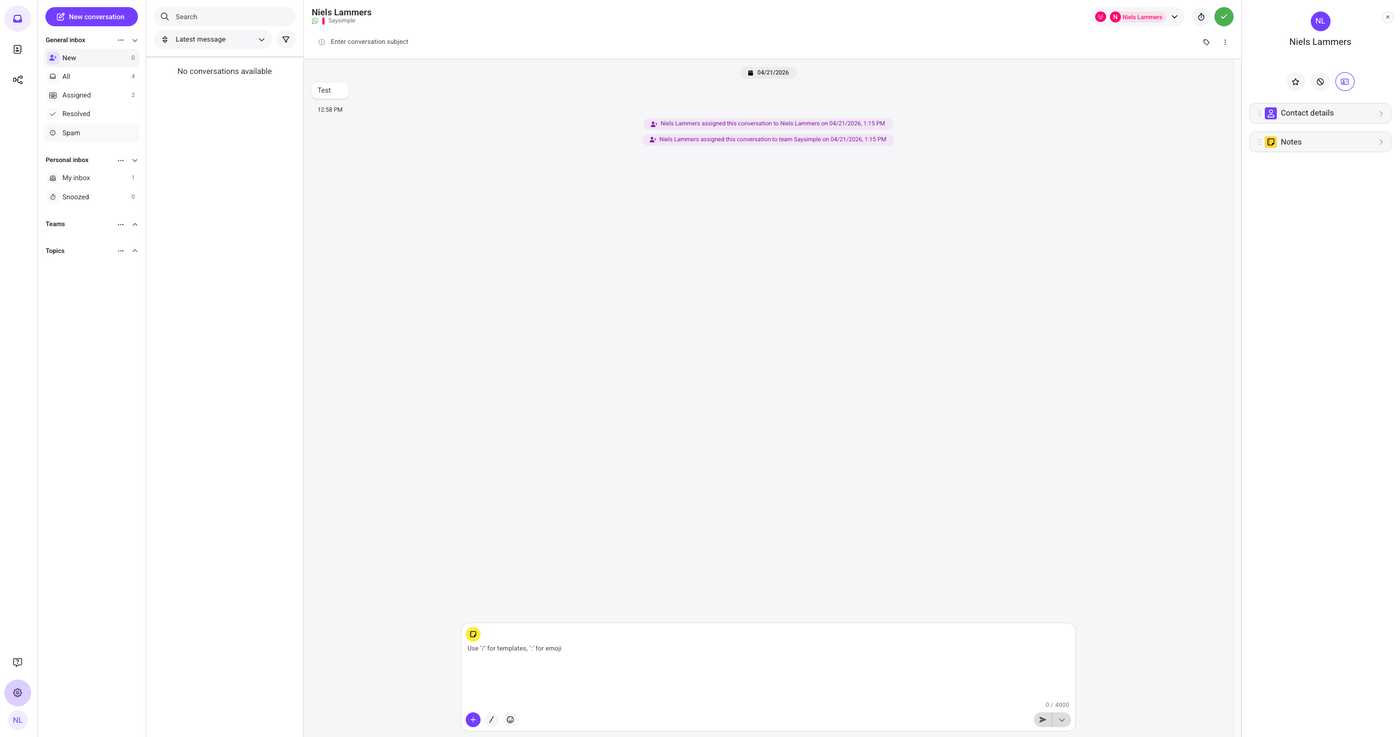
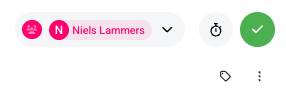
In the upper-right corner of the screen, to the left of the resolve button with the checkmark, you will find the snooze conversation button, which is shown with a timer icon. Click this button to continue.
5. Choose the snooze duration
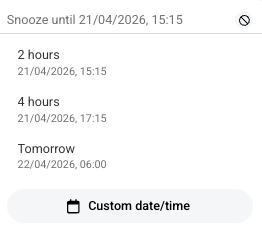
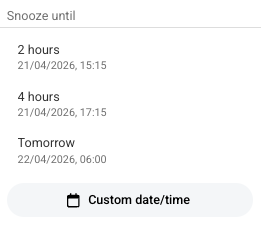
Choose until when you want to snooze the conversation. You can select one of the three suggested options, or choose a custom date and time.
6. View snoozed conversations
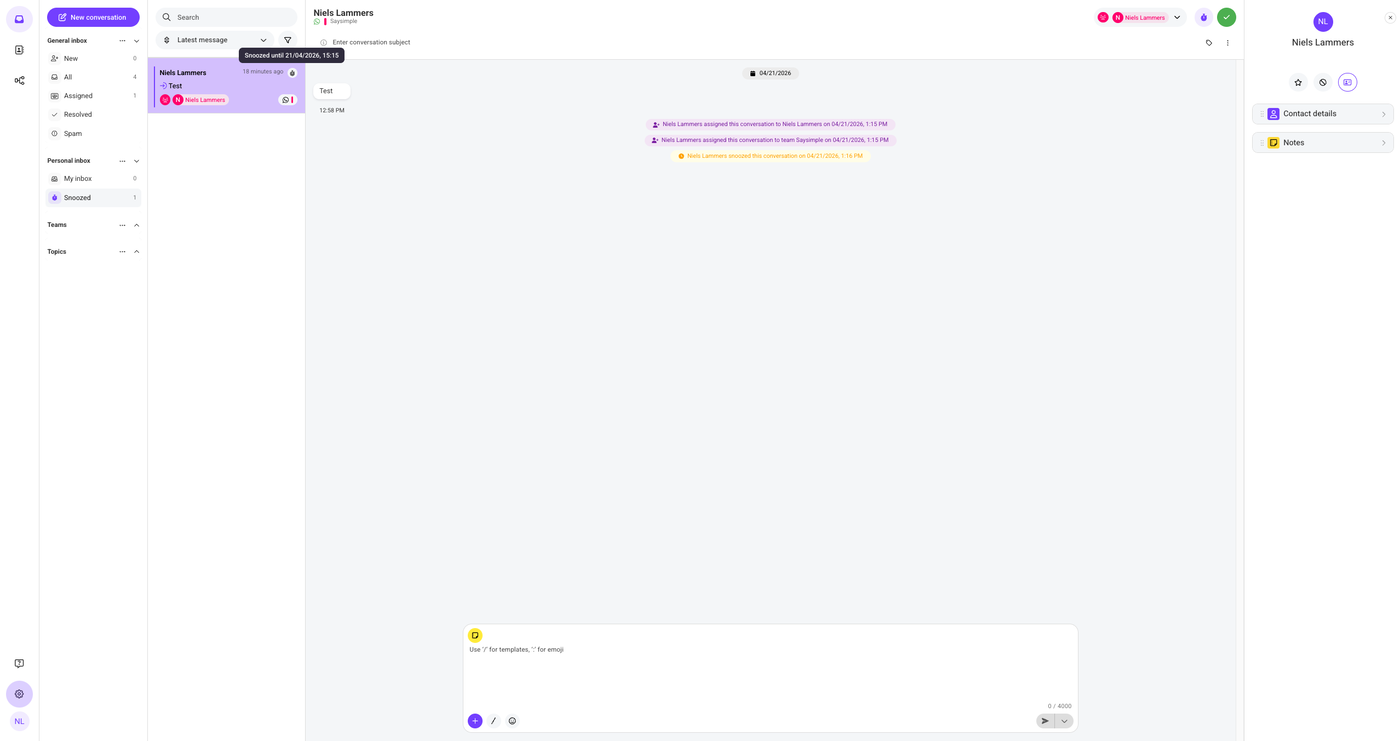
After a conversation has been snoozed, you can find it in the navigation menu under Snoozed. To see until when the conversation is snoozed, hover over the timer icon in the conversation preview.
7. Unsnooze the conversation
To stop snoozing a conversation, click the unsnooze button in the upper-right corner of the screen. This button is shown with a cancel icon.