Assigning a conversation helps make clear who is responsible for following up with the contact. This is useful when another colleague or team is better suited to handle the conversation, or when you want to make sure the message is followed up by the right person in the Saysimple-platform.
In this article, you will learn how to assign a conversation in the Saysimple platform.
1. Open the inbox
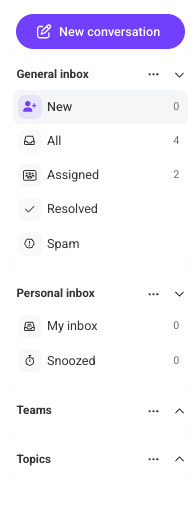
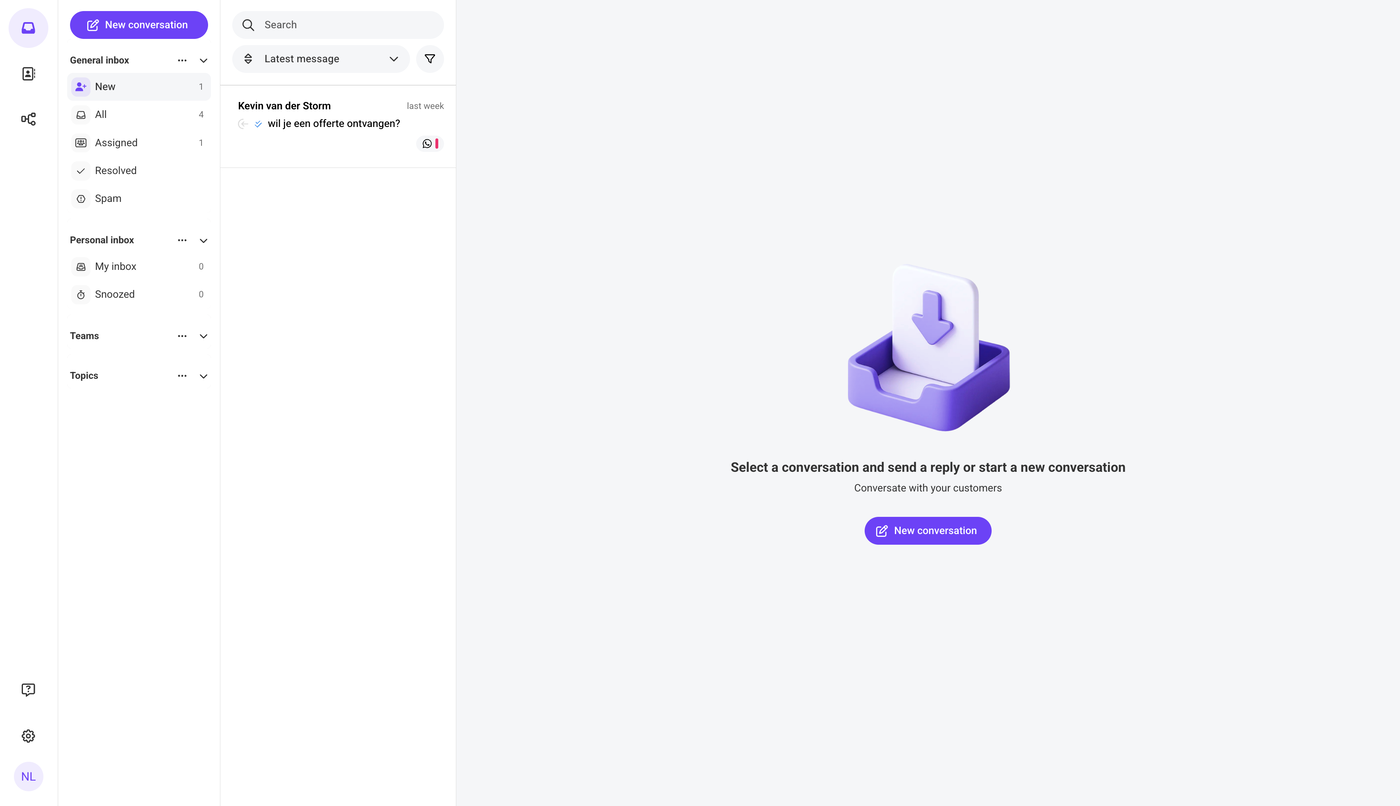
After logging in, the Saysimple platform opens the inbox automatically, this is where incoming conversations are collected and organized.
2. Go to the conversation you want to add notes to
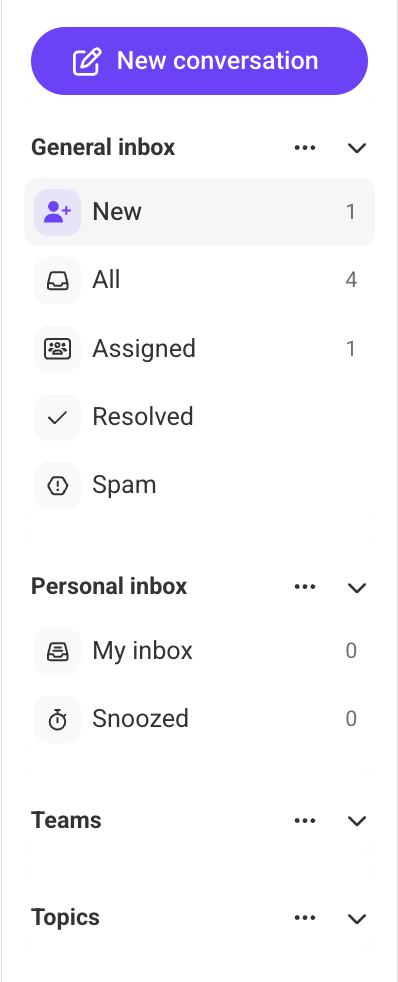
Use the navigation menu on the left side of the screen to find the conversation. You can use one of the available filters, such as New, All, Assigned etc. Depending on where the conversation is located.
3. Open the conversation
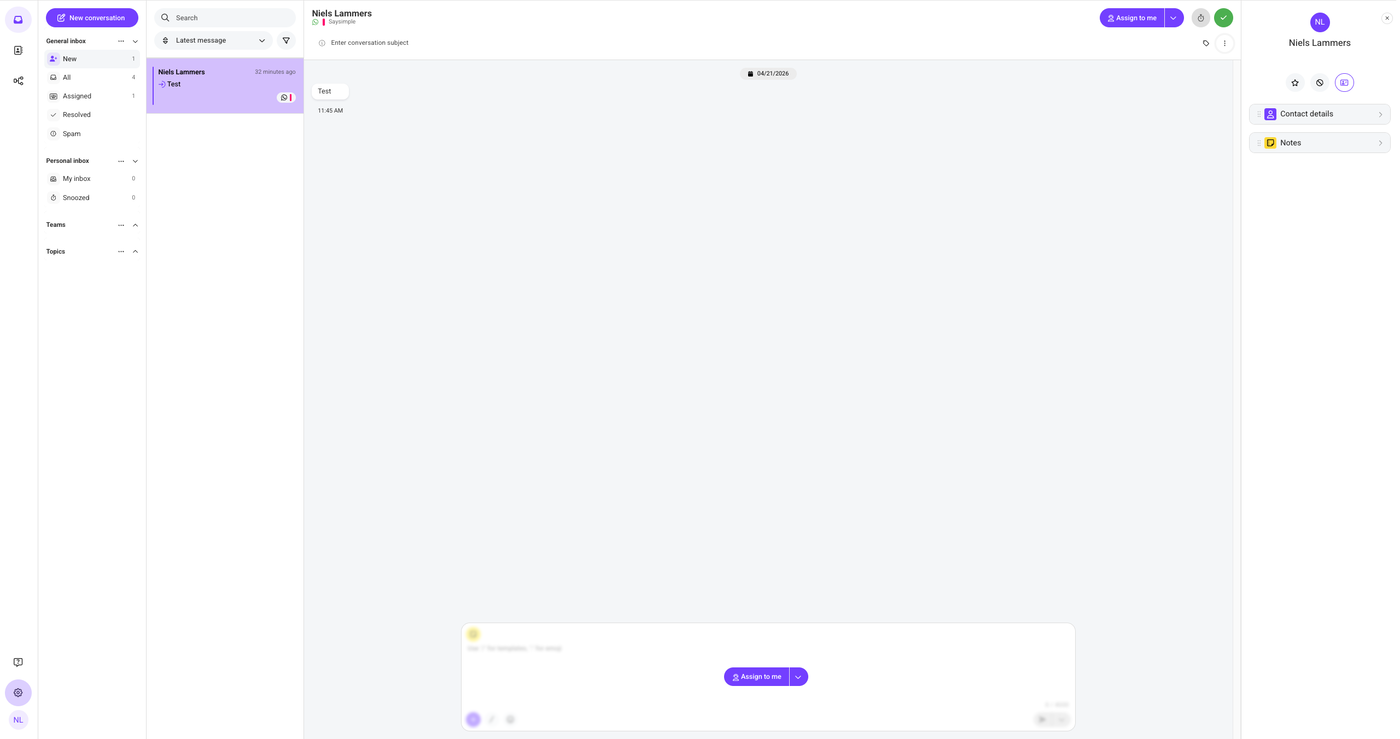
You can see whether a conversation has already been assigned in two places: in the top-right corner of the screen, next to the snooze and resolve buttons, or at the bottom center of the typing field.
4. Assign an unassigned conversation
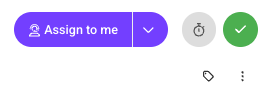
If the conversation has not been assigned yet, the quick option “Assign to me” is available. Next to this option, you will see a downward arrow.
Click “Assign to me” to assign the conversation to yourself.
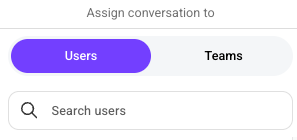
To assign the conversation to another user or team, click the downward arrow. A menu will open where you can select the user or team you want to assign the conversation to.
5. Reassign a conversation to someone else
You can recognize that a conversation has already been assigned when a user name is shown in the assignment field. This name shows who is currently responsible for the conversation.
On the right side of the name, you will see a downward arrow. Click this arrow to reassign the conversation to another user or team.
Click “Assign to me” if you want to assign the conversation to yourself.
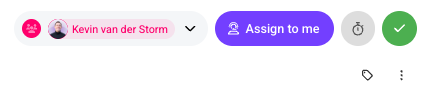
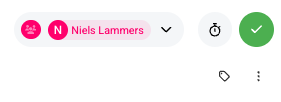
If the conversation is already assigned to you, you will only see your own name with a downward arrow on the right. Click this arrow to assign the conversation to another user or team.
6. Find assigned conversations
After assigning a conversation, you can find it under Assigned in the navigation menu.