Resolving a conversation means closing or archiving the conversation once it has been handled. This helps keep the inbox organized and makes it easier to focus on conversations that still need attention. Resolved conversations are not deleted. You can find them later under “Resolved” in the navigation menu.
Note:
Resolved conversations are stored for 90 days by default. After this period, they may no longer be available in the resolved overview.
If your organization needs to keep resolved conversations for a longer period, this can be extended for an additional fee. Contact SaySimple for more information about the available options.
1. Open the inbox
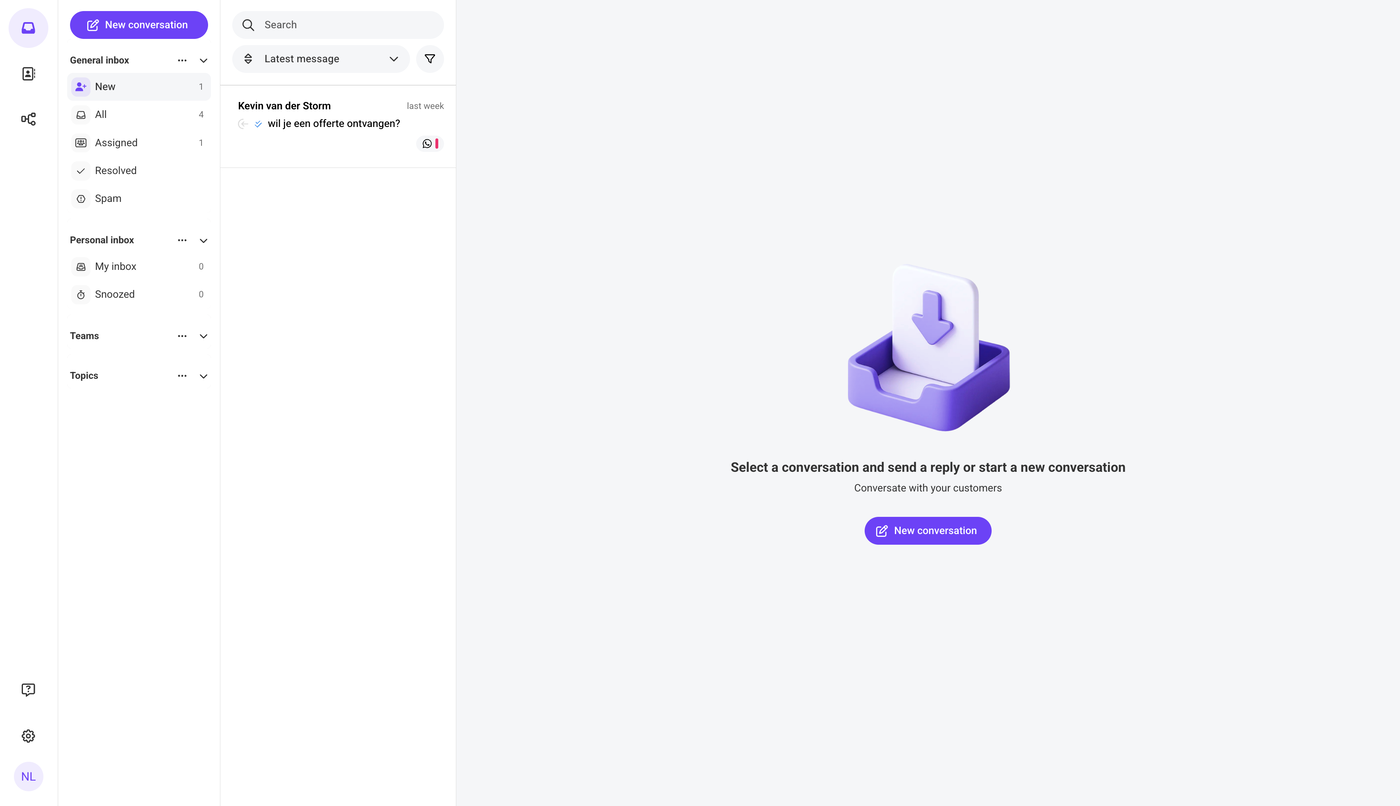
After logging in, the Saysimple platform opens the inbox automatically, this is where incoming conversations are collected and organized.
2. Go to the conversation you want to resolve
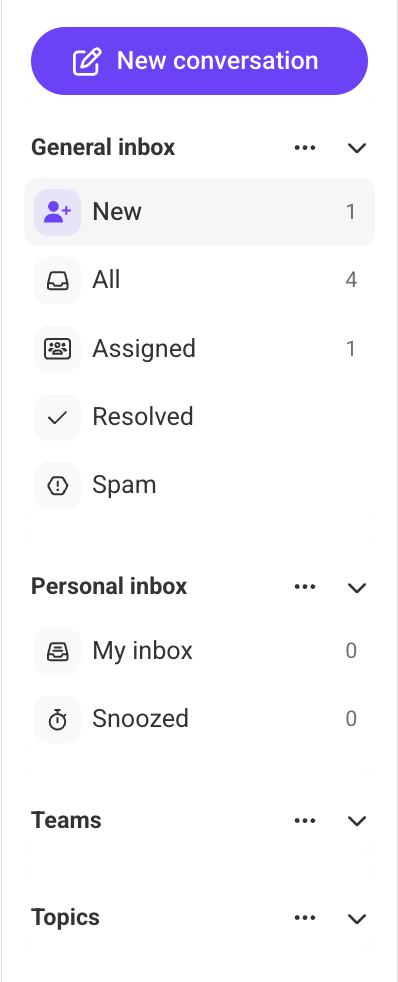
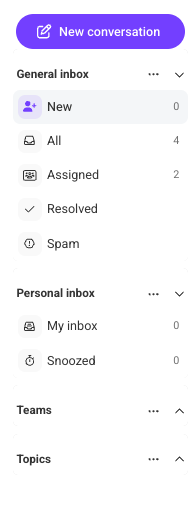
Use the navigation menu on the left side of the screen to find the conversation. You can use one of the available filters, such as New, All, Assigned etc. Depending on where the conversation is located.
3. Click “resolve”
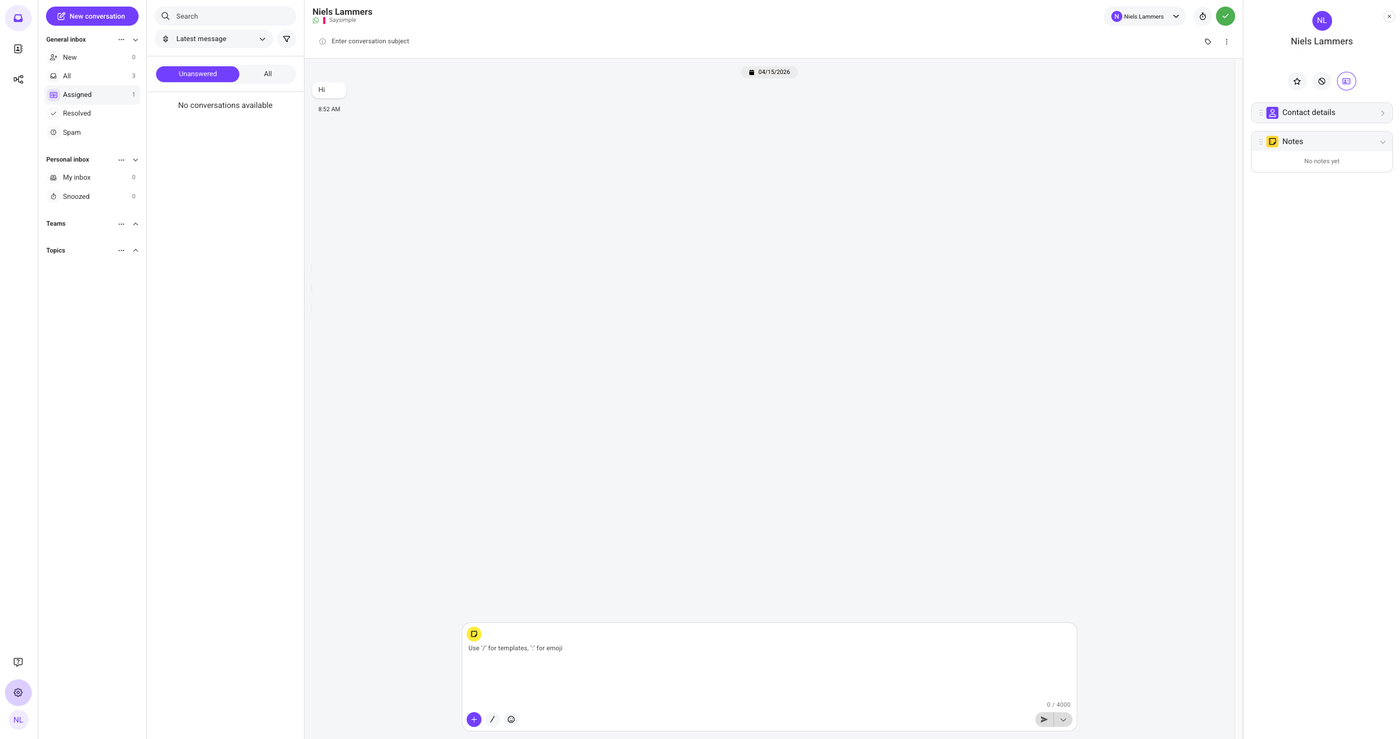
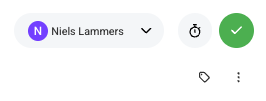
Once you have opened the conversation, click the green checkmark in the top right corner of the screen. This is the resolve button.
4. Check the confirmation message
After resolving the conversation, a confirmation message appears in the top right corner of the screen. The conversation is now moved to “Resolved” in the navigation menu.

5. How to find a resolved conversation
To view resolved conversations, go to the navigation menu and click Resolved. Here you can find conversations that were previously completed or archived.
6. How to undo resolving a conversation
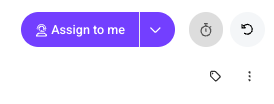
If you want to move a resolved conversation back, open the conversation from Resolved and click the arrow icon in the top right corner of the screen.
The conversation will then be moved back from the resolved overview and will automatically be assigned to the user who was last assigned to the conversation.