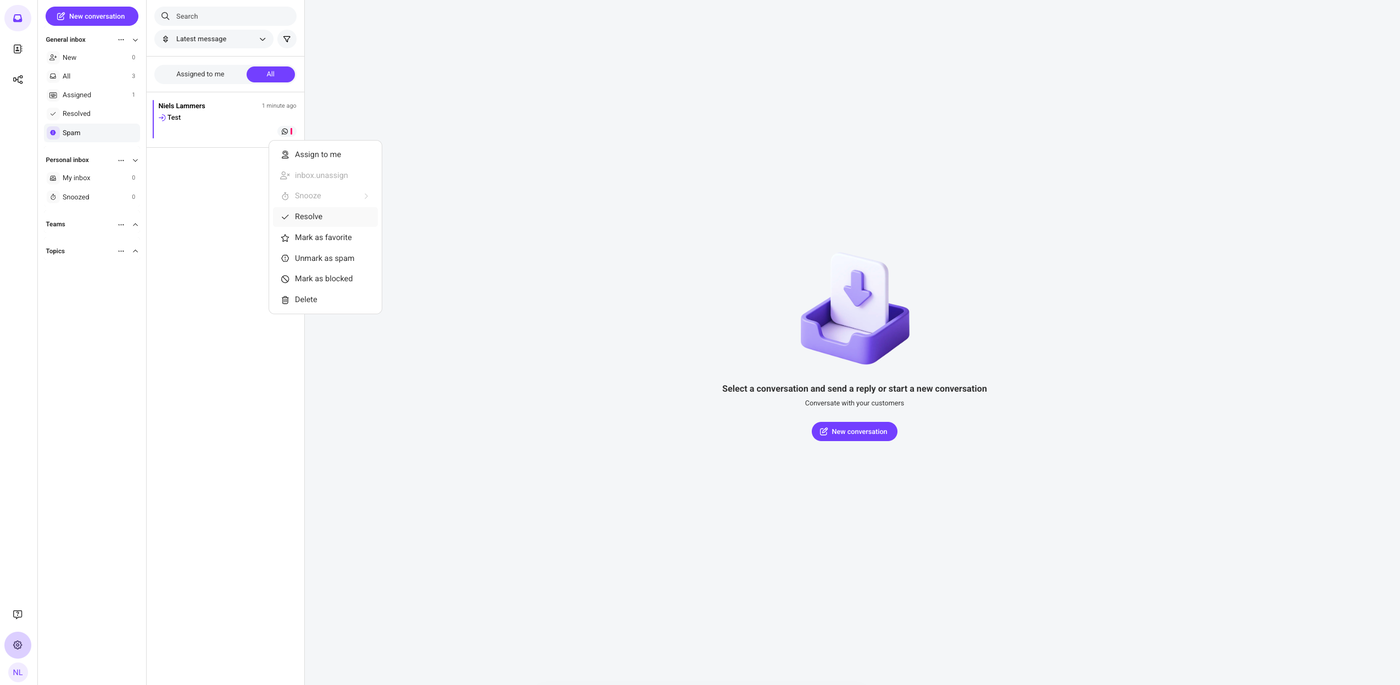
Marking a conversation as spam helps keep your inbox clean and prevents unwanted or irrelevant conversations from staying between regular customer messages.
In this article, you will learn how to mark a conversation as spam in the Saysimple platform.
1. Open the inbox
After logging in, the Saysimple platform opens the inbox automatically, this is where incoming conversations are collected and organized.
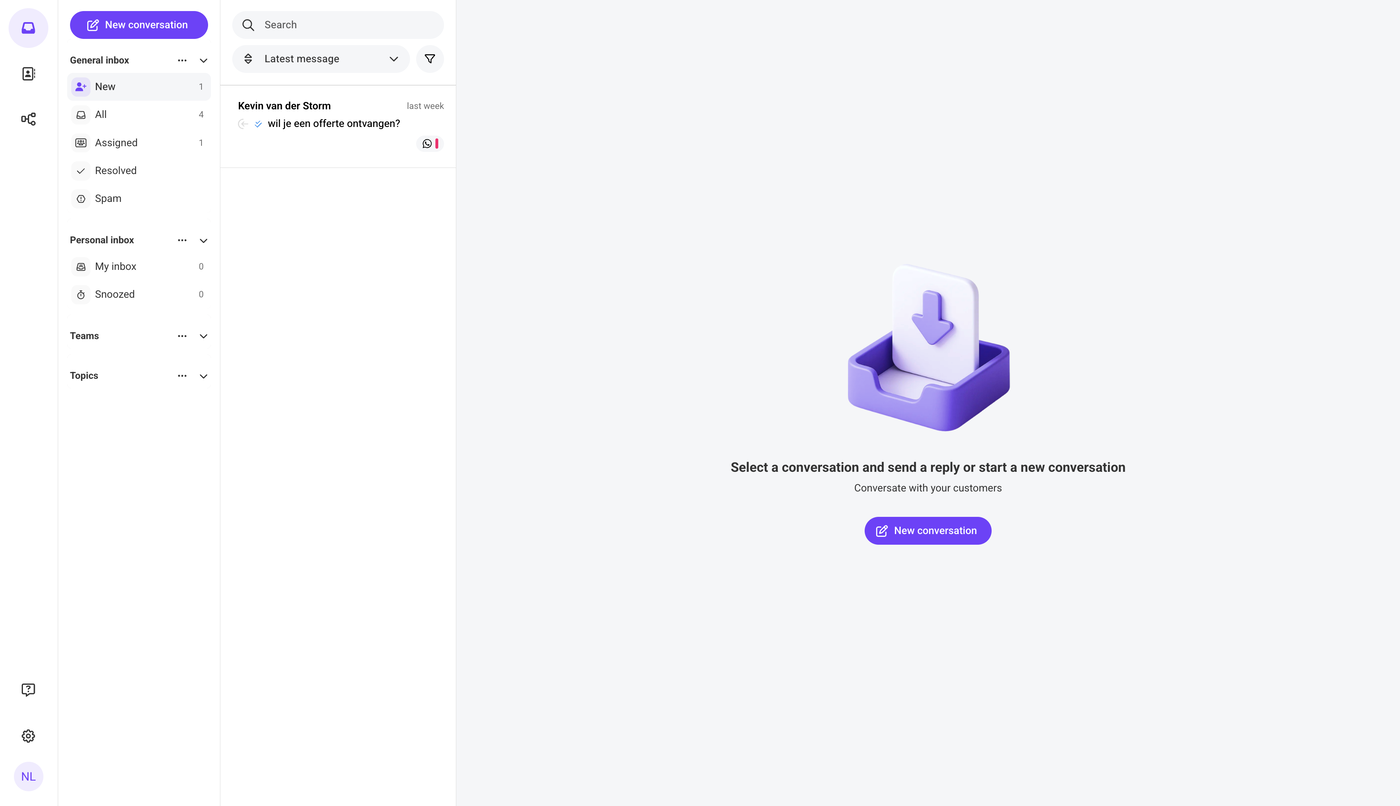
2. Go to the conversation you want to delete
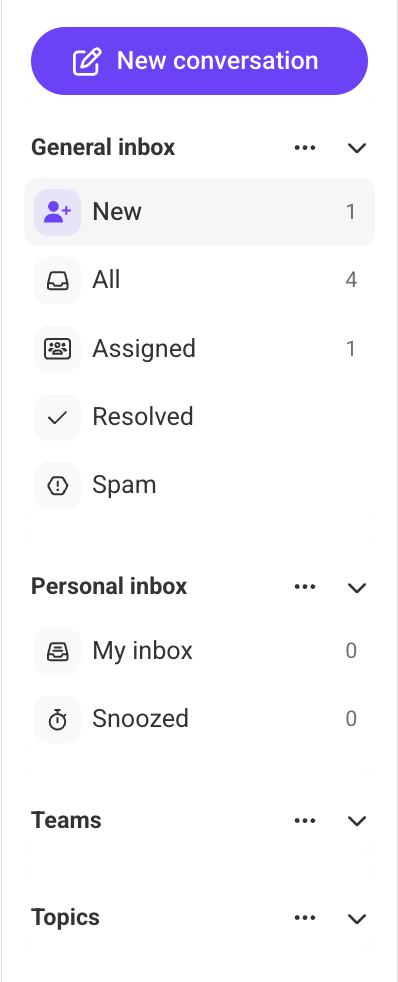
Use the navigation menu on the left side of the screen to find the conversation. You can use one of the available filters, such as New, All, Assigned etc. Depending on where the conversation is located.
3. Open the conversation
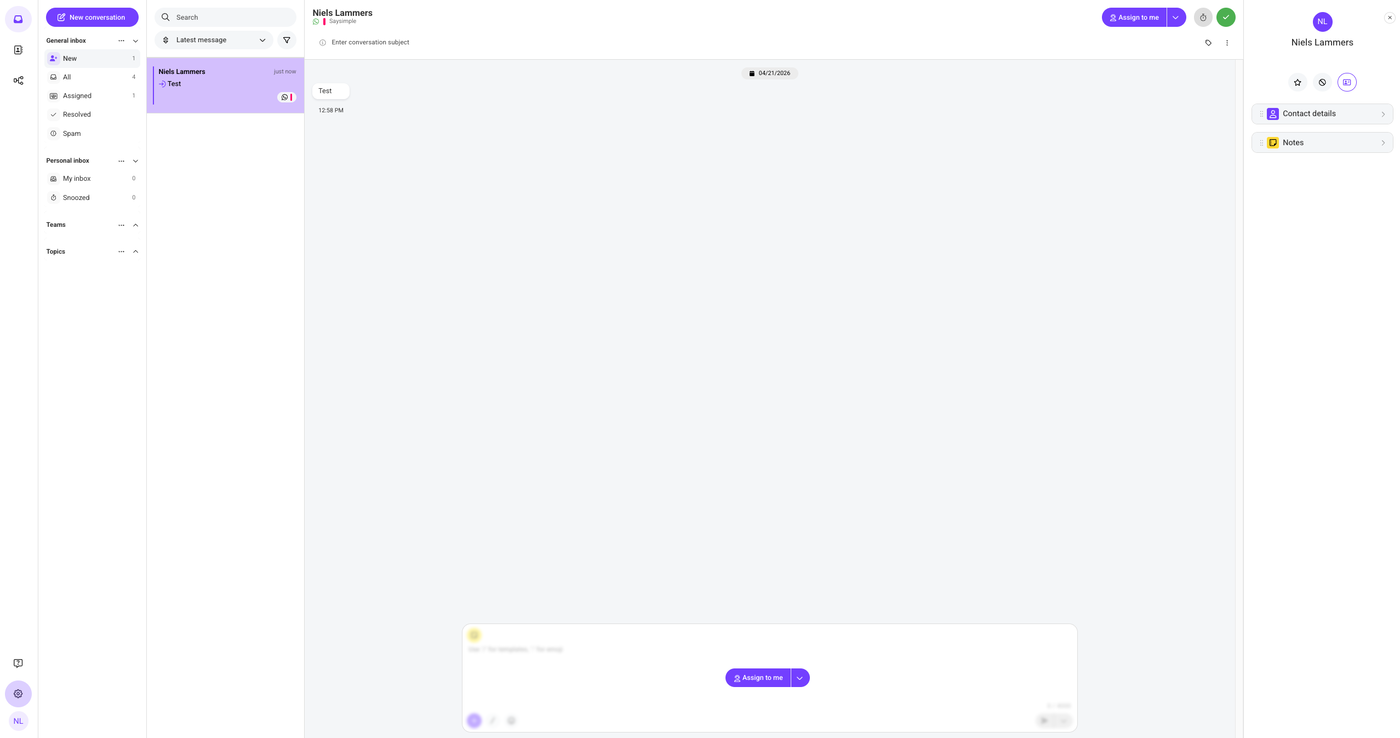
4. Click the three dots
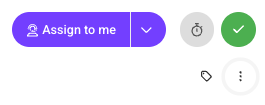
In the top-right corner of the screen, below the resolve option with the checkmark icon, you will see three dots. Click these three dots to open the dropdown menu.
5. Click “Mark as spam”
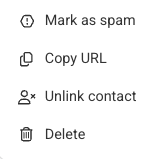
In the dropdown menu, several options will appear. Click “Mark as spam”, which is the first option in the menu.
6. Unmark as spam
After you mark a conversation as spam, you can find it in the navigation menu under “Spam.”
To unmark the conversation as spam, right-click the conversation in the Spam overview. Then click “Unmark as spam.”