Notes help you add internal context to a conversation in the Saysimple platform. This is useful when another agent takes over the conversation, because they can quickly understand what has already been discussed or what still needs attention.
In this article, you will learn how to add notes to a conversation in the Saysimple platform.
1. Open the inbox
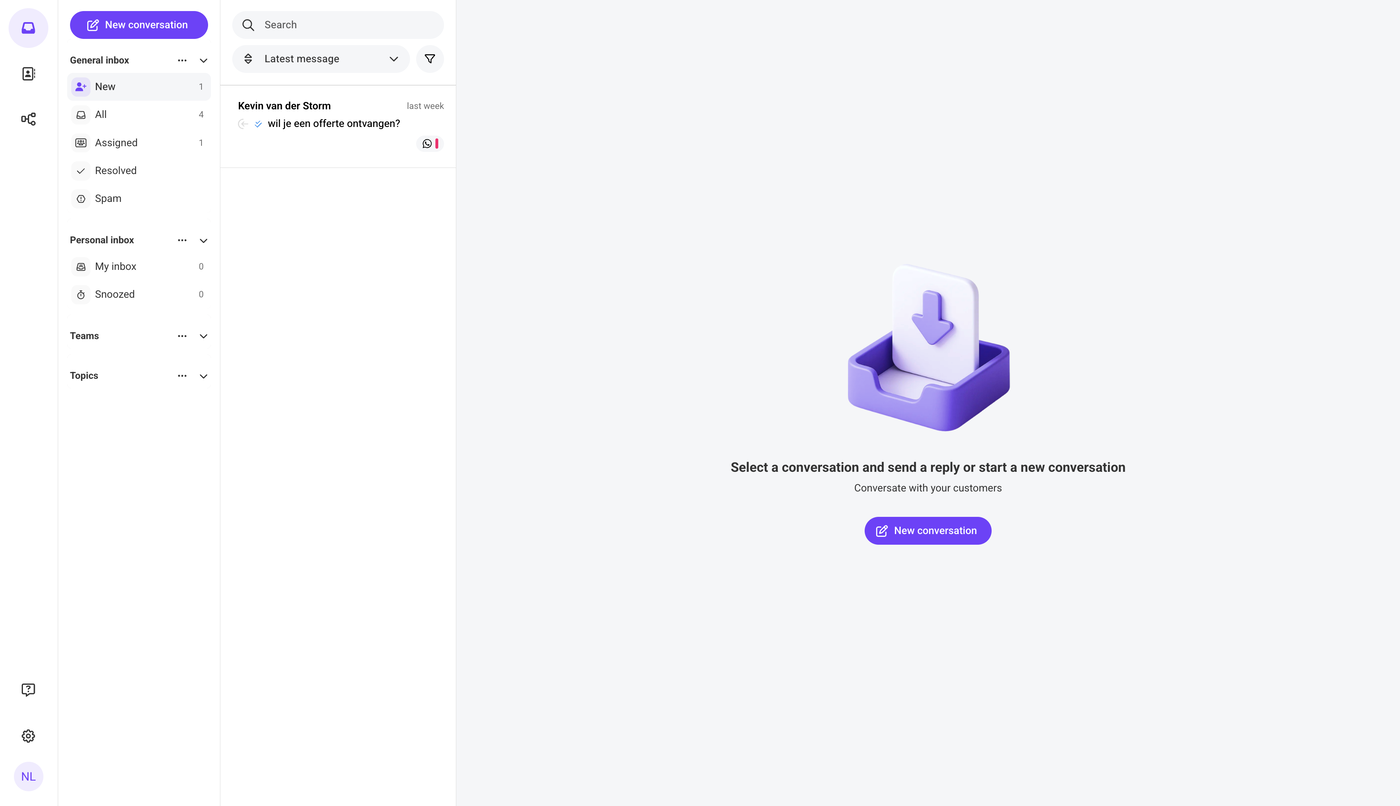
After logging in, the Saysimple platform opens the inbox automatically, this is where incoming conversations are collected and organized.
2. Go to the conversation you want to add notes to
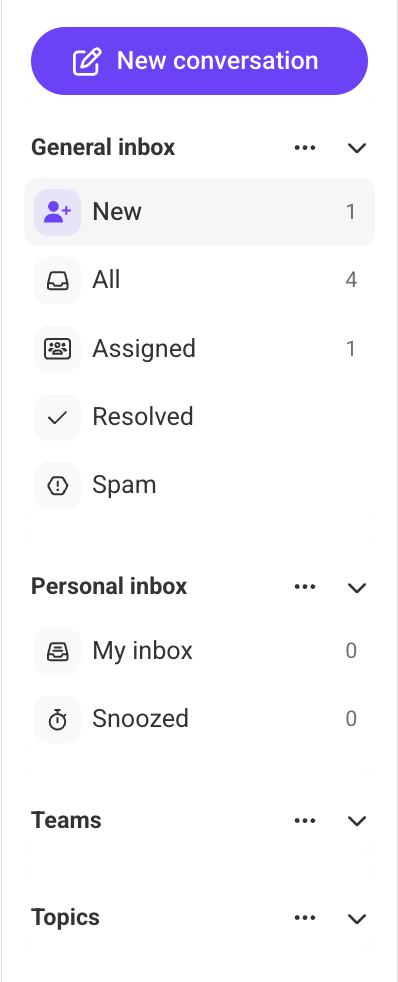
Use the navigation menu on the left side of the screen to find the conversation. You can use one of the available filters, such as New, All, Assigned etc. Depending on where the conversation is located.
3. Click the “notes” icon
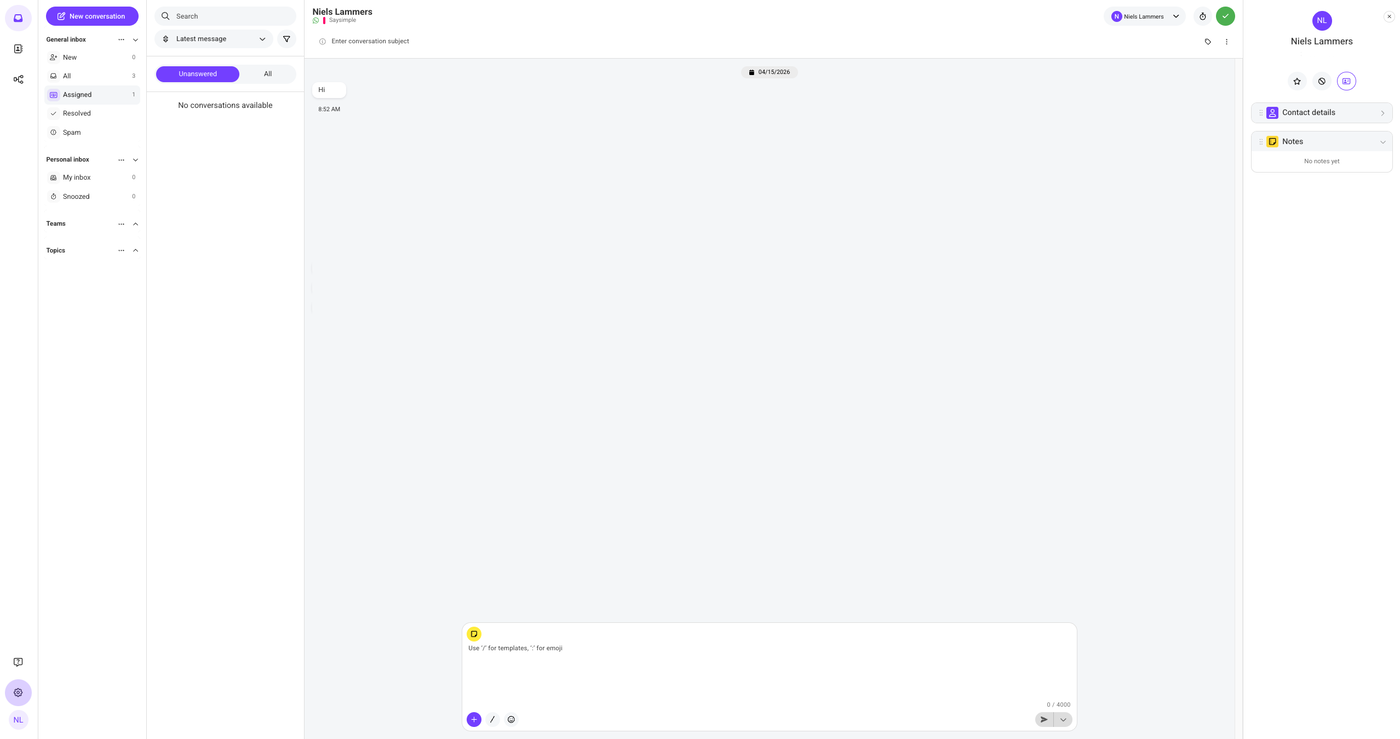
Click the yellow icon in the top-left corner of the typing field to open the option to add a note.

4. Type the note you want to add
Once the option to add notes is activated, the typing field turns yellow.
You can add multiple notes one after another. The note option stays active until you click the “X” in the top-right corner of the typing field.
After you click the “X”, the typing field turns white again and you can continue the conversation.

5. Add the note
Click Send to add the note.
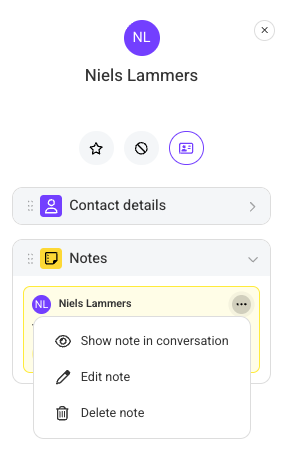
Once the note has been added, it appears in yellow in the conversation, making it easy to distinguish from regular messages, which appear in white. The note is also shown on the right side of the screen, under the contact details.
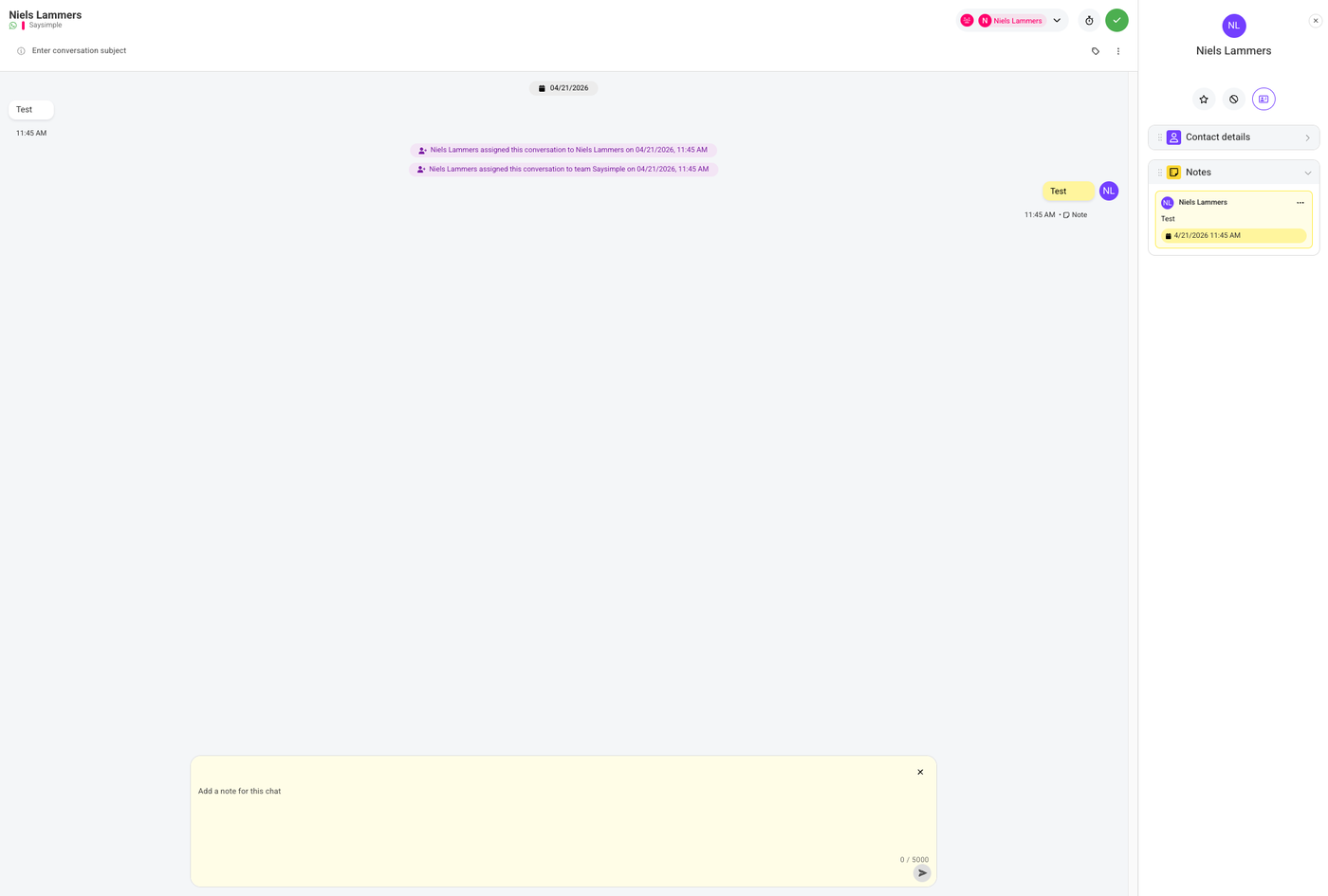
6. Note overview
On the right side of the screen, you can find an overview of all notes that have been added to the conversation.
From this overview, you can open the location of a note to better understand the context in which it was added. You can also edit or delete a note when needed.