

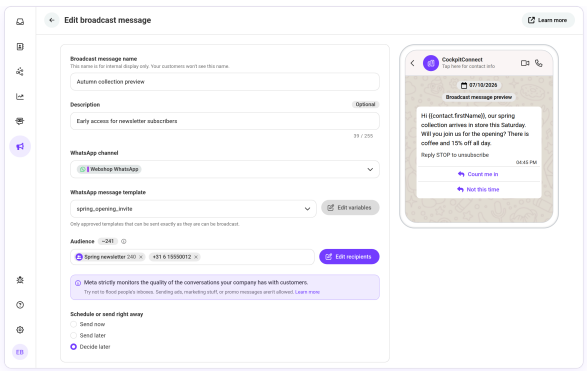
Everything happens on one page. While you fill it in, a phone-style preview shows the message your recipients will get.
Name and description. The name identifies the campaign in the overview. The description is optional.
Audience. Add recipients from three tabs: Contact list, Contacts and Enter manually. Typed numbers must include the country code.
Channel. Pick an active WhatsApp channel.
Template. Pick an approved template for that channel.
Variables. Use Edit variables to fill in values that are the same for everyone, such as a date or location. Values that come from the contact, such as a first name, are filled in per person at send time.
Header file. Upload it if the template asks for one.
Timing. Choose one of the options below.
Confirm. A dialog shows when sending will start and roughly how long it takes. Nothing is sent before you confirm.
Timing option | What happens |
|---|---|
Send now | Starts within about 30 seconds. |
Send later | Pick a date, time and timezone, at most 3 months ahead. The timezone defaults to your browser's. |
Decide later | Saves the campaign as Ready. It will not send until you schedule it. |
The form shows how long sending takes, for example "Sending takes about 13 minutes". If another campaign is already queued on the same channel, the form warns that yours will start later than you asked.
No drafts
A saved campaign is always complete and valid. Saving is blocked when nobody in the audience can be reached, or when the audience is over 15,000.
No fallback values
No fallback values
If a recipient has no value for a contact variable such as first name, that recipient is skipped. Nobody gets a message with a gap in it. Before sending, the form shows the cost, for example "312 recipients have no value for first name". The "will receive" number already leaves those recipients out.
You can personalise with first name, last name, reference, country and any custom field in your workspace. They must already be in the template as contact placeholders. There is no field mapping in the form.
Editing
You can edit a campaign while it is Ready or Scheduled. To take a scheduled campaign off the schedule, edit it and choose Decide later.