Now that you know how to handle incoming conversations, let’s look at how to start a conversation proactively with a contact you haven’t chatted with before.
You can start a new conversation directly from the Inbox or from the Contacts section.
✏️Additional info: WhatsApp 24h window explained
⏱️ What is the 24-hour customer care window?
If you're new to the WhatsApp API in Saysimple, the 24-hour customer care window (also called the "customer care window") is one of the most important things to understand.
The simple rule to remember:
Client messages you → 24-hour window opens → You can reply normally → 24 hours pass → Window closes → You need an approved template to start a new conversation.
In practice: when a client sends you a message, you have 24 hours to reply freely — no WhatsApp template required.
Example:
👤 Client: "Hi, I have a question about my order."
💬 You: "Of course! Let me check that for you."
You can continue chatting normally for the next 24 hours.
💬 Why does this window exist?
WhatsApp wants conversations to be started by the customer, or relevant to an ongoing conversation — not businesses sending unlimited unsolicited messages. Think of it as a conversation window: once a customer contacts your business, you have 24 hours to help them and keep the conversation going naturally.
Once 24 hours have passed since the client's last message, the window closes. If you want to reach out again after that, you'll need to start the conversation with an approved WhatsApp template.
🚫 What happens if you try to message outside the window?
If the 24-hour window has closed, Saysimple won't let you send a regular free-text message to that client. Instead, you'll need to select an approved template to restart the conversation. Keep an eye out for this in the conversation view — it's a good signal that it's time to switch to a template rather than a normal reply.
📋 What are WhatsApp templates?
Templates are pre-approved messages you can use to start a conversation once the 24-hour window is closed.
You create and manage templates in Saysimple Settings. Once submitted, they go through an approval process with Meta/WhatsApp before you can use them — so it's worth setting up the templates you'll need in advance, rather than waiting until you need one urgently.
Common uses for templates:
📦 Order updates
📅 Appointment reminders
📢 Marketing messages
🔔 Notifications
💰 What about cost?
The 24-hour window determines what kind of message you're allowed to send — it doesn't determine whether that message is free.
Meta charges for messages based on category and region, and those charges can apply whether you're inside or outside the window. So it's useful to keep these two things separate:
24-hour window → what type of message you're allowed to send
Meta pricing → what you may be charged for sending it
Prices vary by message category and recipient region, and Meta updates its pricing from time to time — always check Meta's current pricing for your specific market rather than relying on a fixed number.
🔄 When does the window open again?
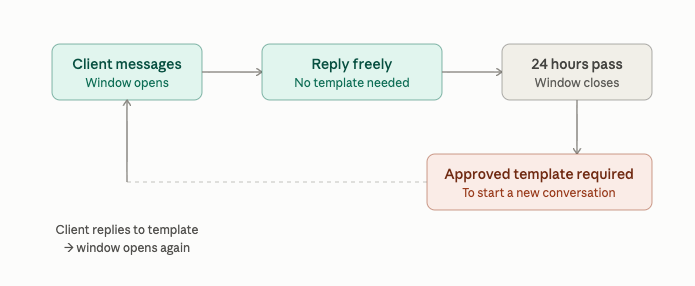
The window is based on the client's latest message. For example:
Monday 10:00 → Client sends a message → 24-hour window opens
Monday 15:00 → Client sends another message → the window is extended (reset from this new message)
Tuesday 15:01 → Client hasn't sent anything else → the window is now closed
If the client messages you again after the window has closed, a new 24-hour window opens.
💡 Remember
Sending a template does not open the 24-hour window. Only a reply from the client opens it — so even after a template message, you're still waiting on the client to respond before you can chat freely again.
1. Start a conversation from the Inbox
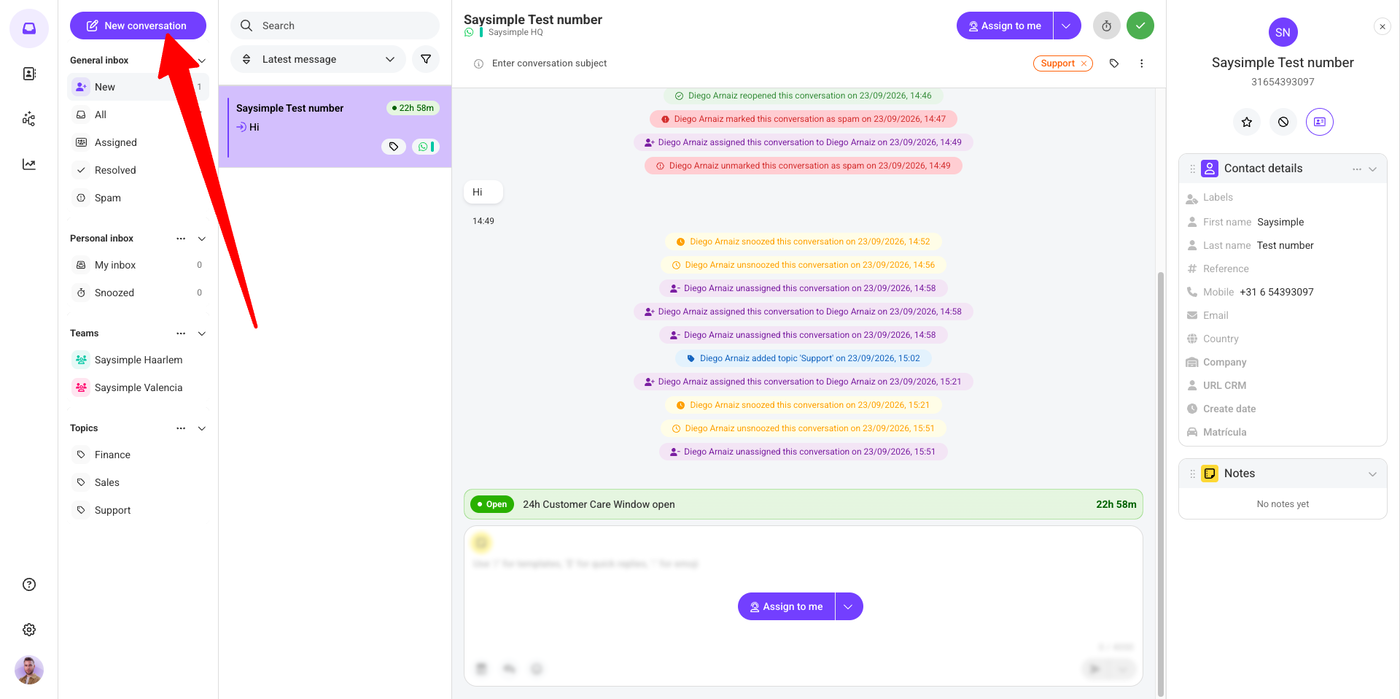
Go to the purple button at the top of your Inbox and click “New conversation.”
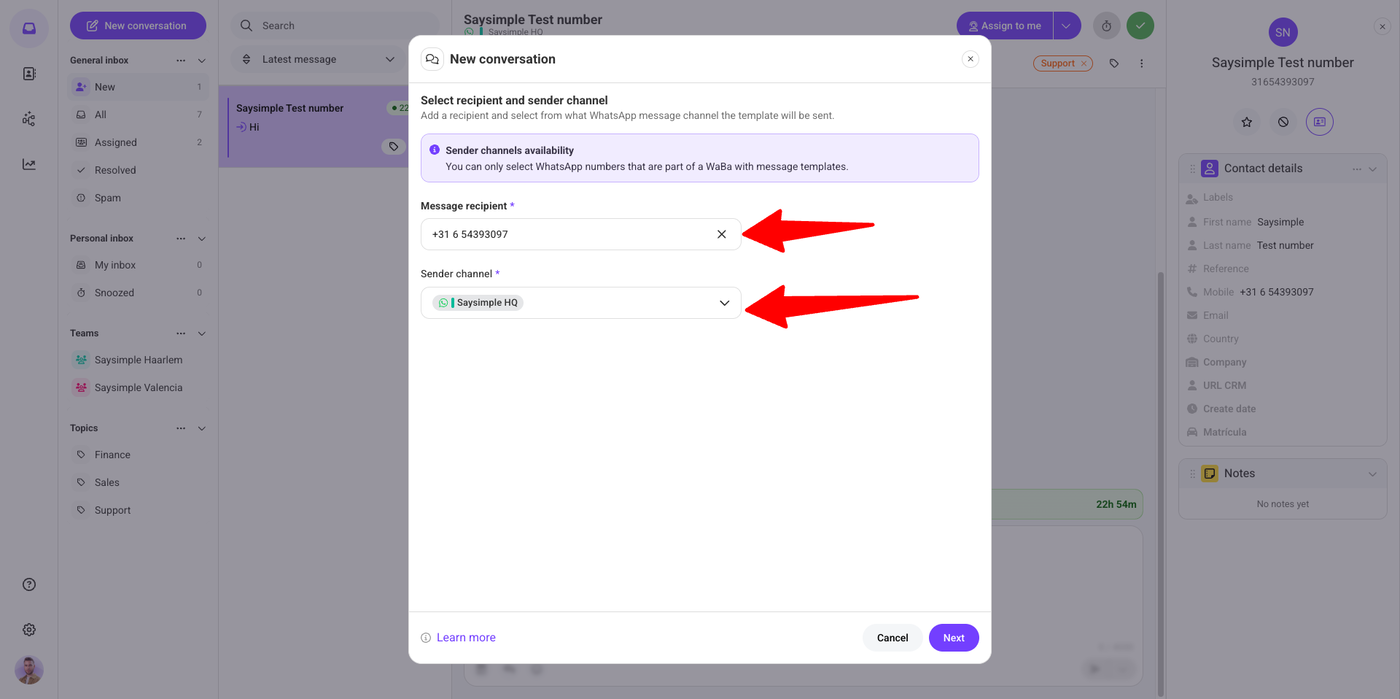
First, select the contact or phone number you want to send a message to, and then select the WhatsApp channel you want to send it from. This is important because you can have several WhatsApp channels connected to Saysimple.
To start a conversation with a client, you’ll need to select a WhatsApp template.
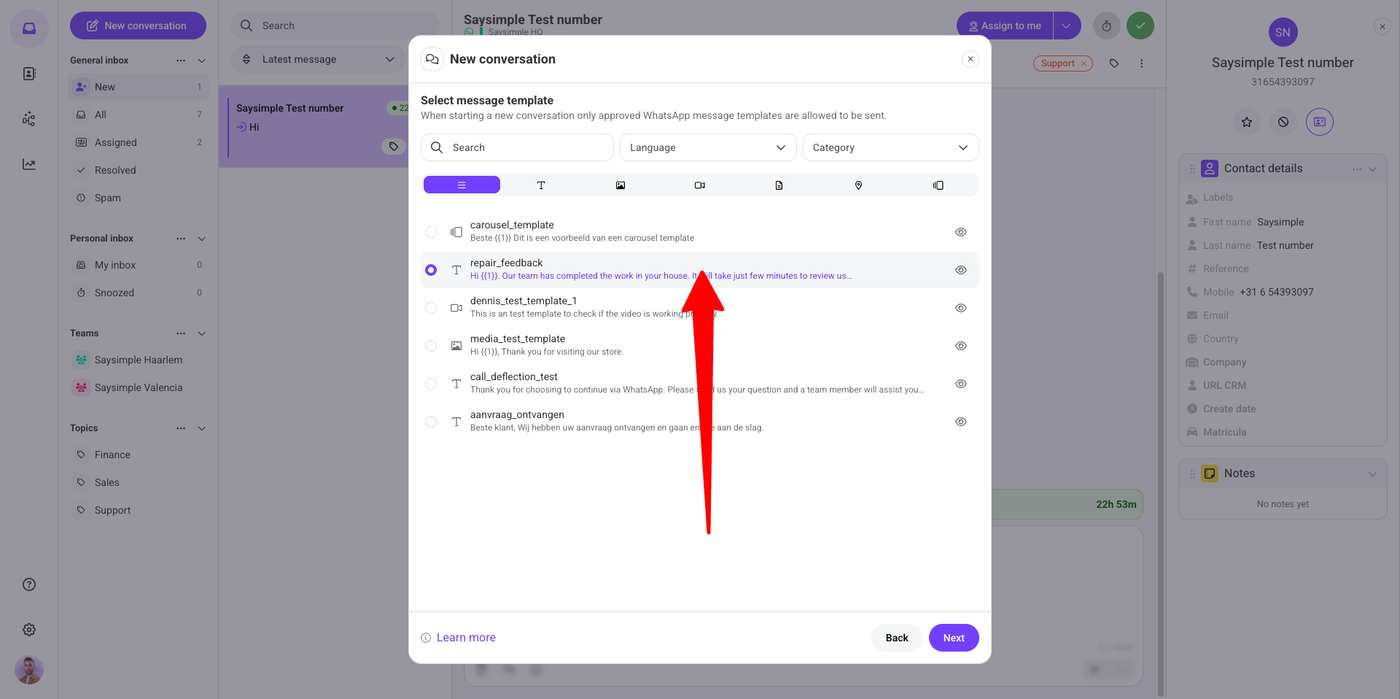
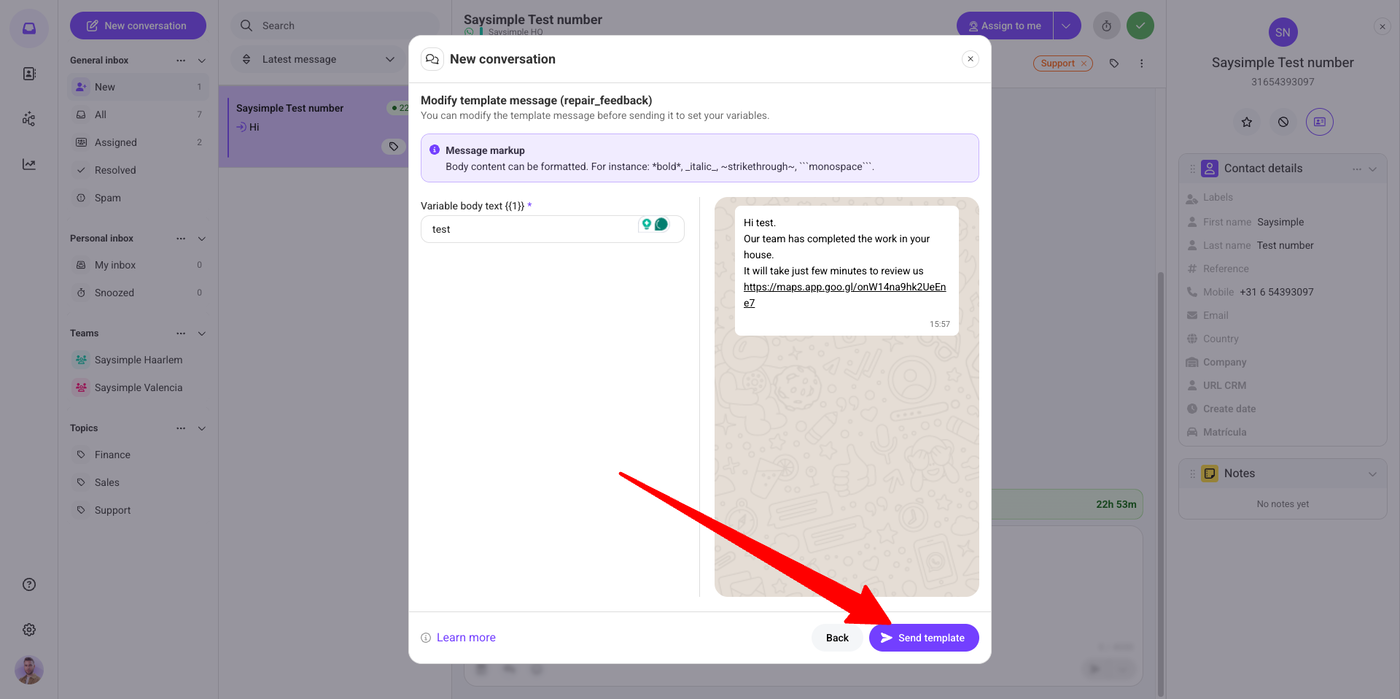
Fill in the template variables, if applicable, and click “Send template.”
Now, we have to wait for the client to reply. Keep in mind that sending a template does not open the 24-hour customer care window. The window only opens once the client replies.
If WhatsApp templates or the 24-hour customer care window are new to you, no worries! We explain these concepts in more detail
2. Start a conversation from contacts
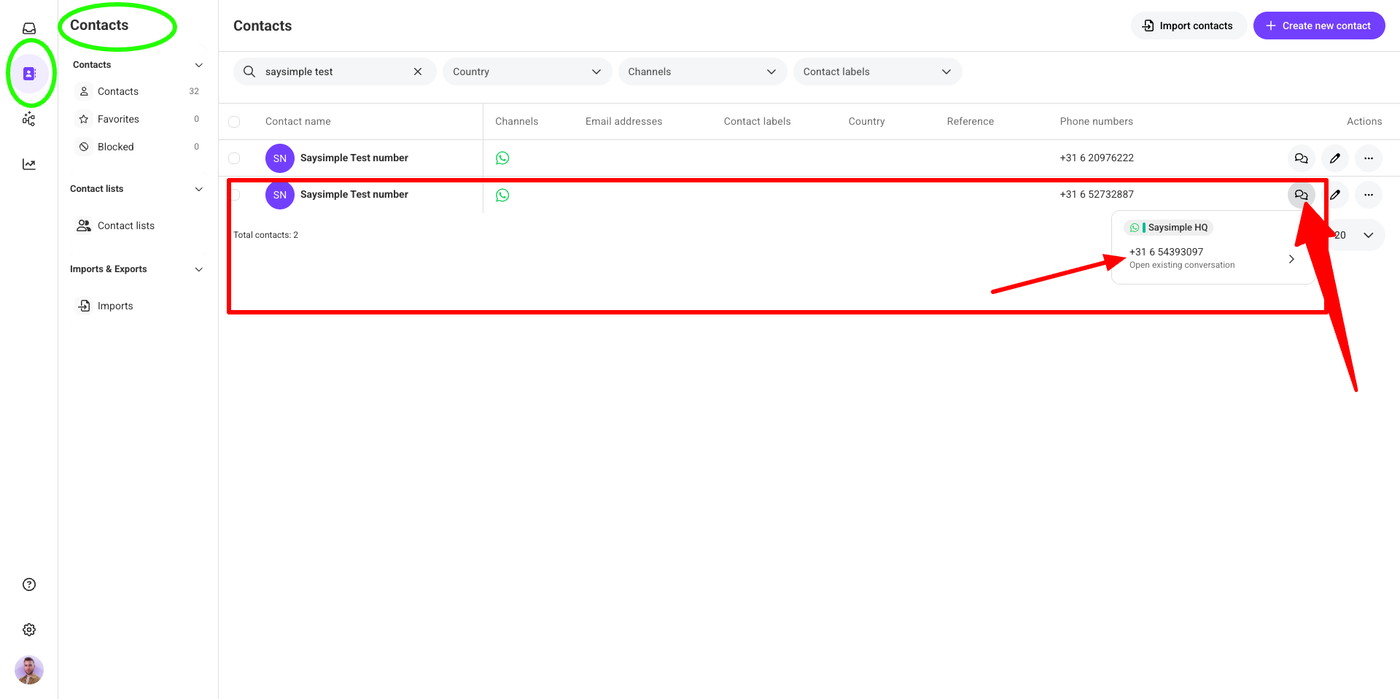
You can also go to the Contacts section in the menu and search for your contact by name or phone number.
Once you’ve found the contact, click on the conversation bubble, select the WhatsApp channel, and a conversation will start with your client.
Similarly, you’ll need to select a template if the 24-hour customer care window is closed.