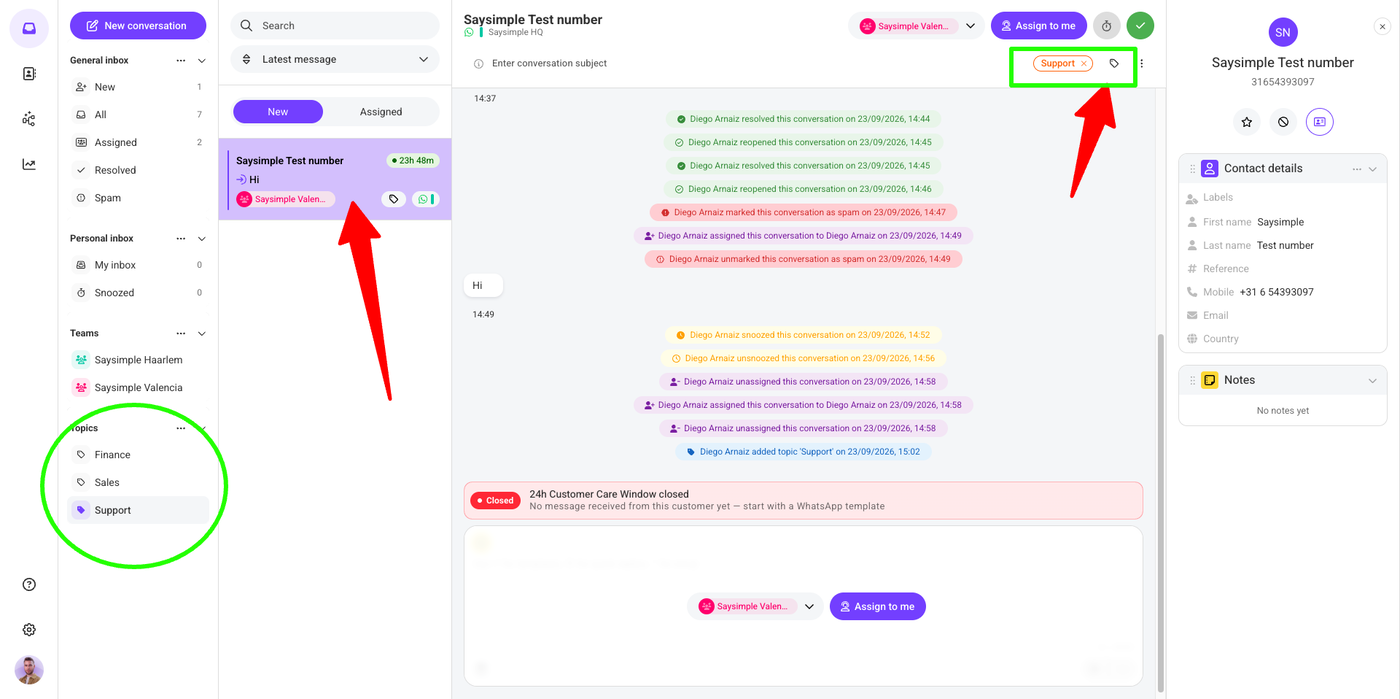
When you open your Inbox in Saysimple, you'll see that it is organized into a few sections: General Inbox, Personal Inbox, Teams, and Topics.
Each section has a different purpose and helps you keep your conversations organized and easy to manage.
Below, you'll find a simple explanation of each section.
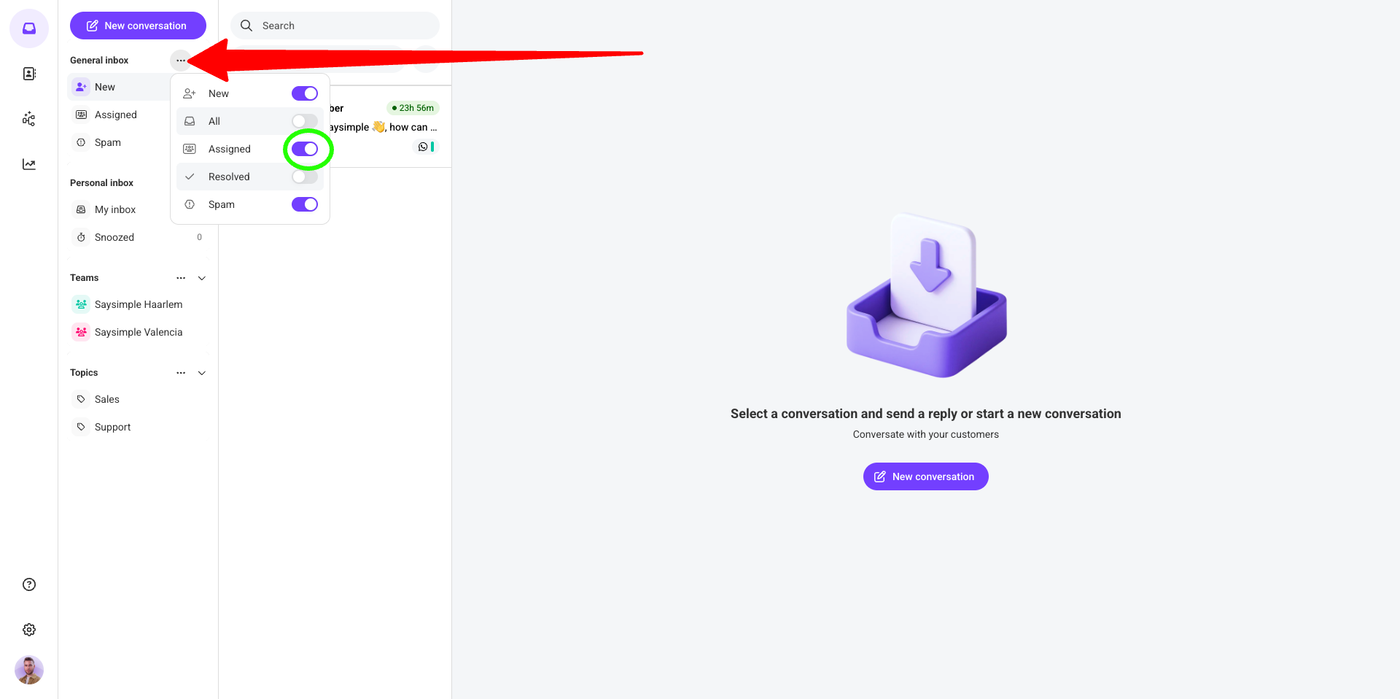
Inbox Customization
You can toggle the different sections on and off (New, All, Assigned, Resolved, Spam) to show the ones that are relevant to your team. This is personal to each user.
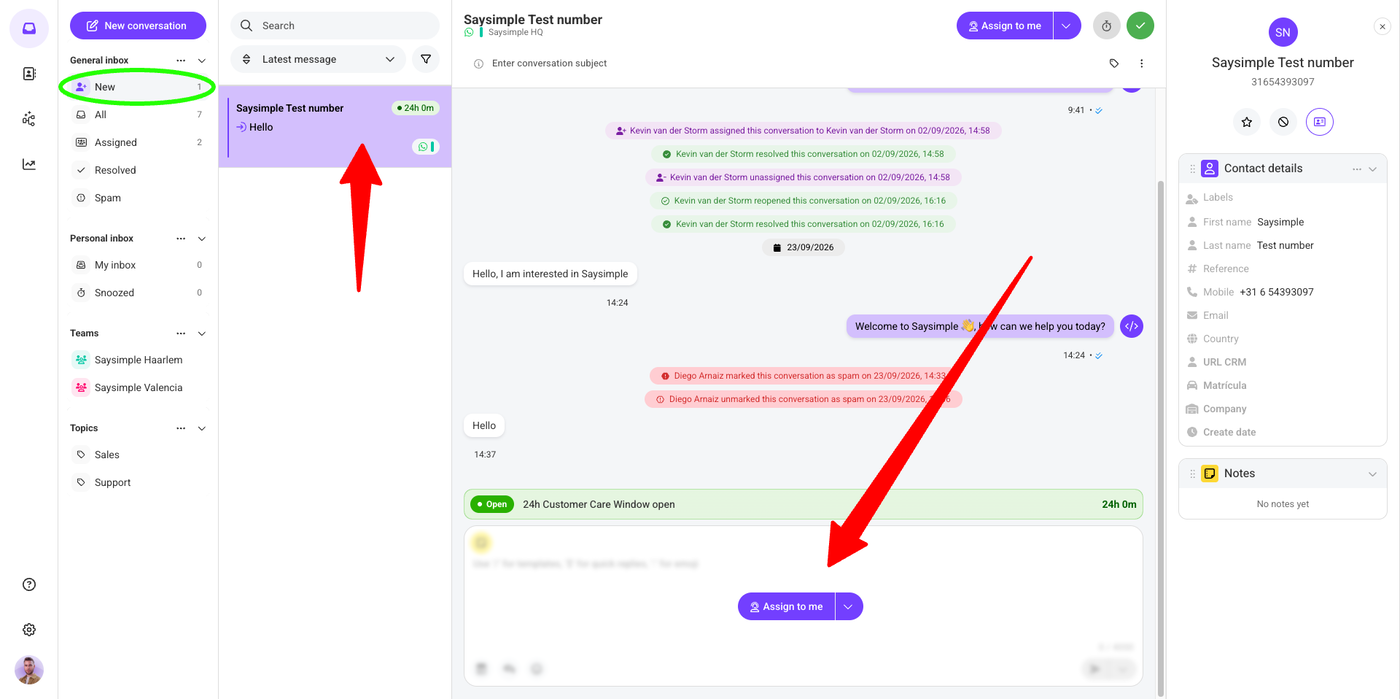
General Inbox: New
This is where all incoming messages arrive. To reply, you first need to click on the purple “Assign to me” button. At that moment, the conversation will be assigned to you and will move to the “Personal Inbox” section. You can then answer the client and handle all of your own conversations.
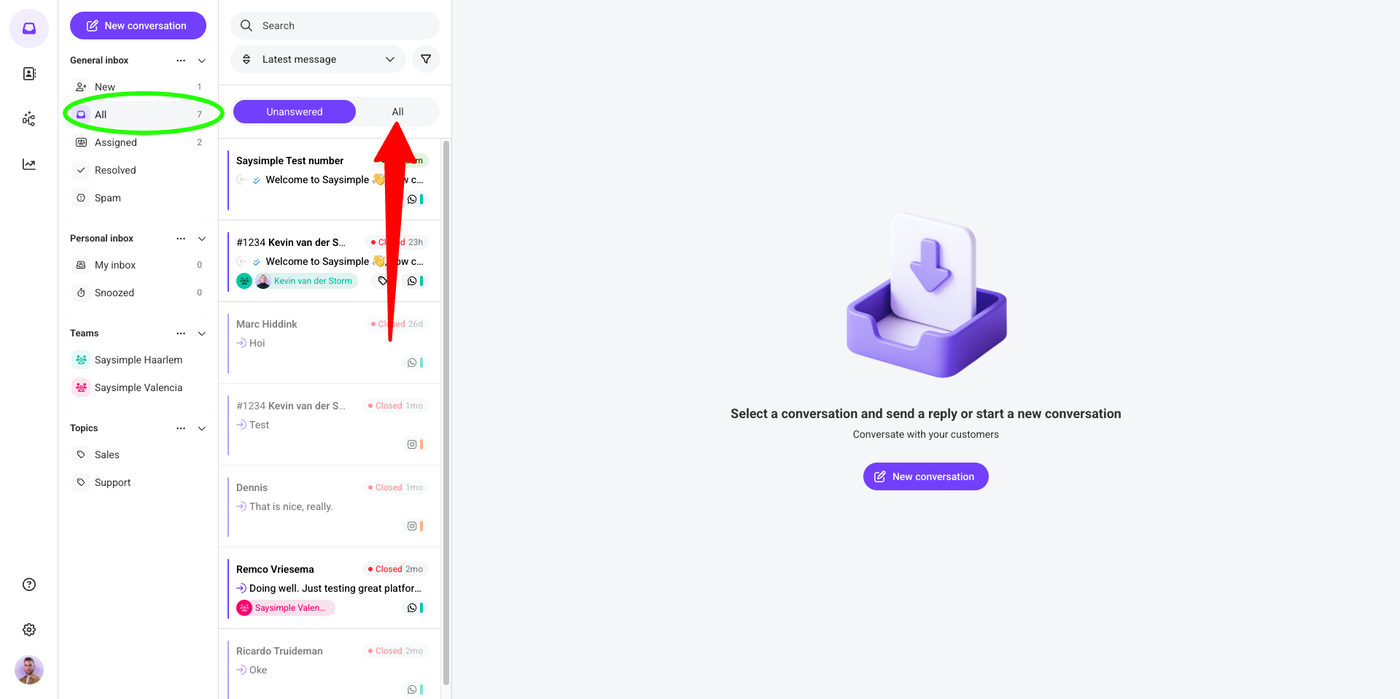
General Inbox: All
This section contains all of your conversations. If you lose a conversation, it will be here. It contains all active and resolved conversations, assigned and unassigned.
‼️It's important to note that this section is divided into two columns: Unanswered and All. This is the case for many sections in the inbox, though some conversations can end up in the most unexpected places.
Please keep this in mind: a conversation might be in the All tab if you cannot find it.
Assigned
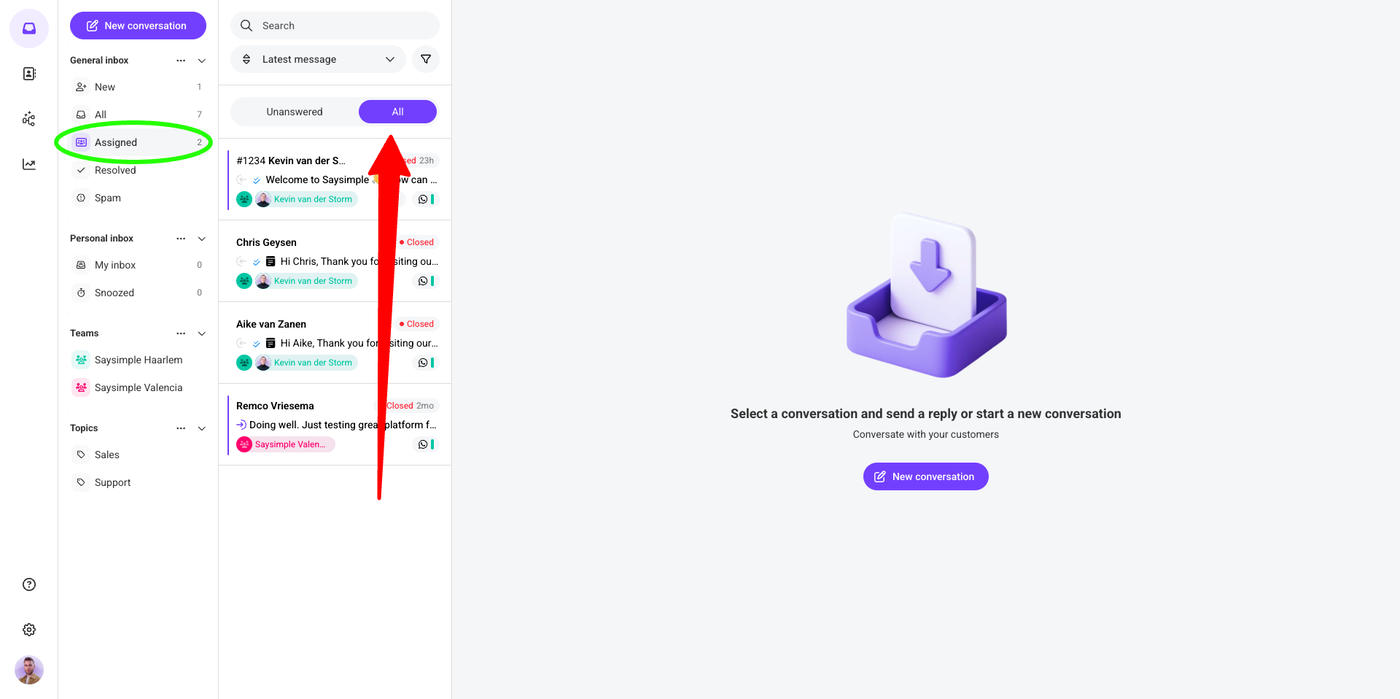
General Inbox: Assigned
This is the same as All, but you don't see resolved conversations or unassigned conversations. In other words, you only see active conversations and assigned conversations, which offers a more filtered view.
General Inbox: Resolved
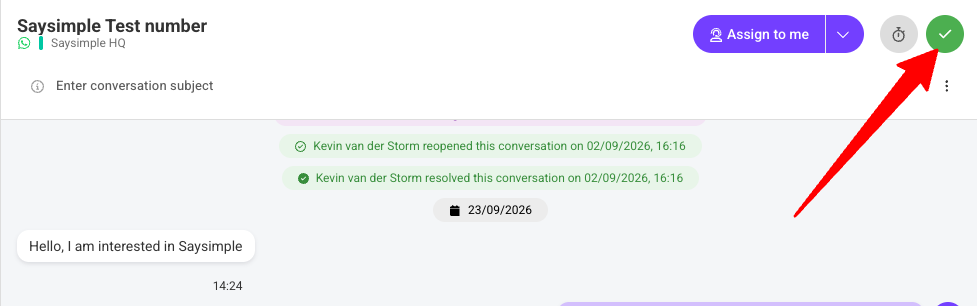
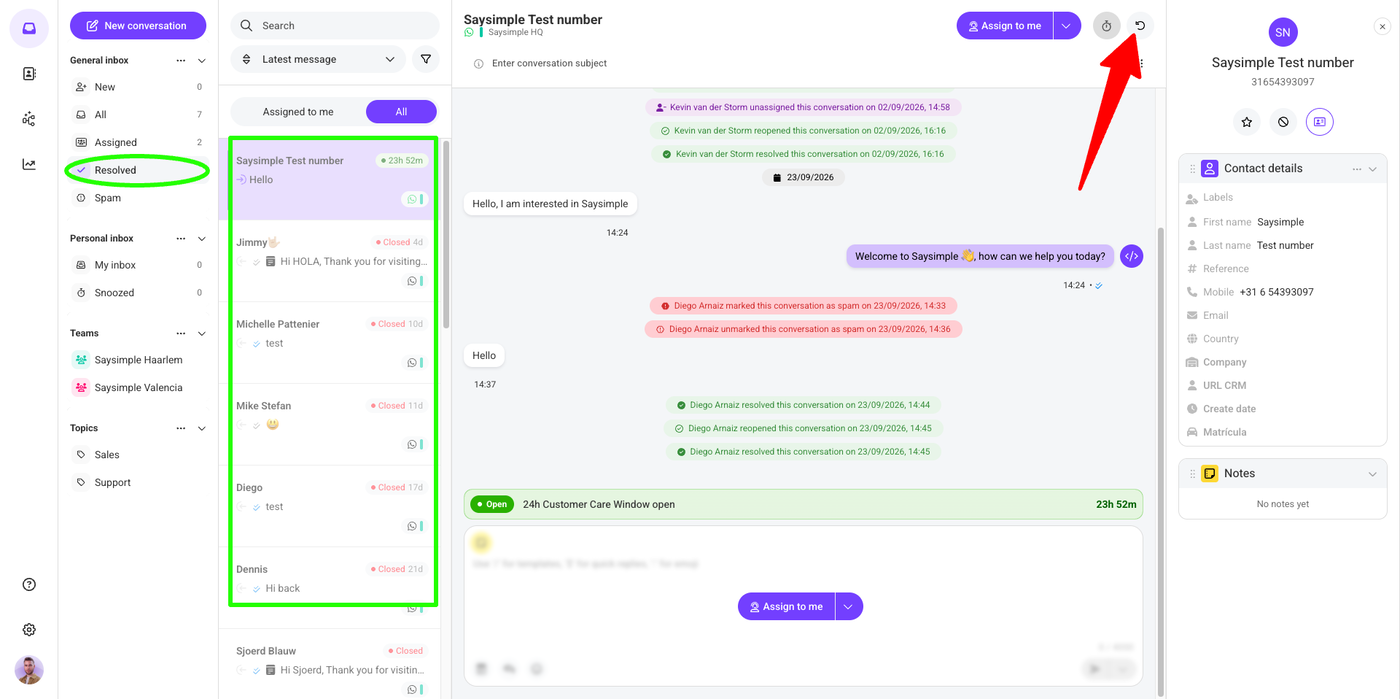
When you have finished helping a client, you can click on the green “Resolve” button on top of a conversation, and the conversation will end up here in the Resolved section.
No worries, if the client texts you again, the conversation will be reactivated automatically. You can also unresolve it yourself manually, or simply type in the conversation again and it will be unresolved.
General Inbox: Spam
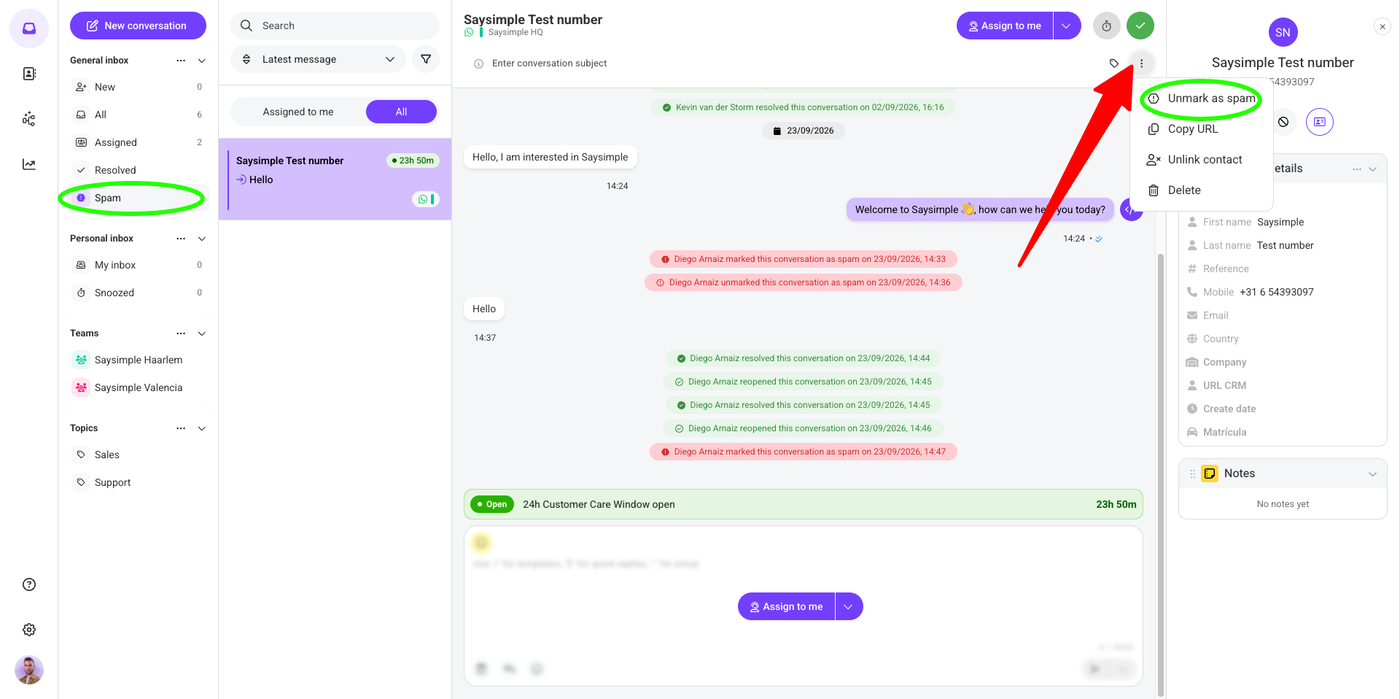
You can mark or unmark a conversation as spam from the three dots, and it will end up in this section.
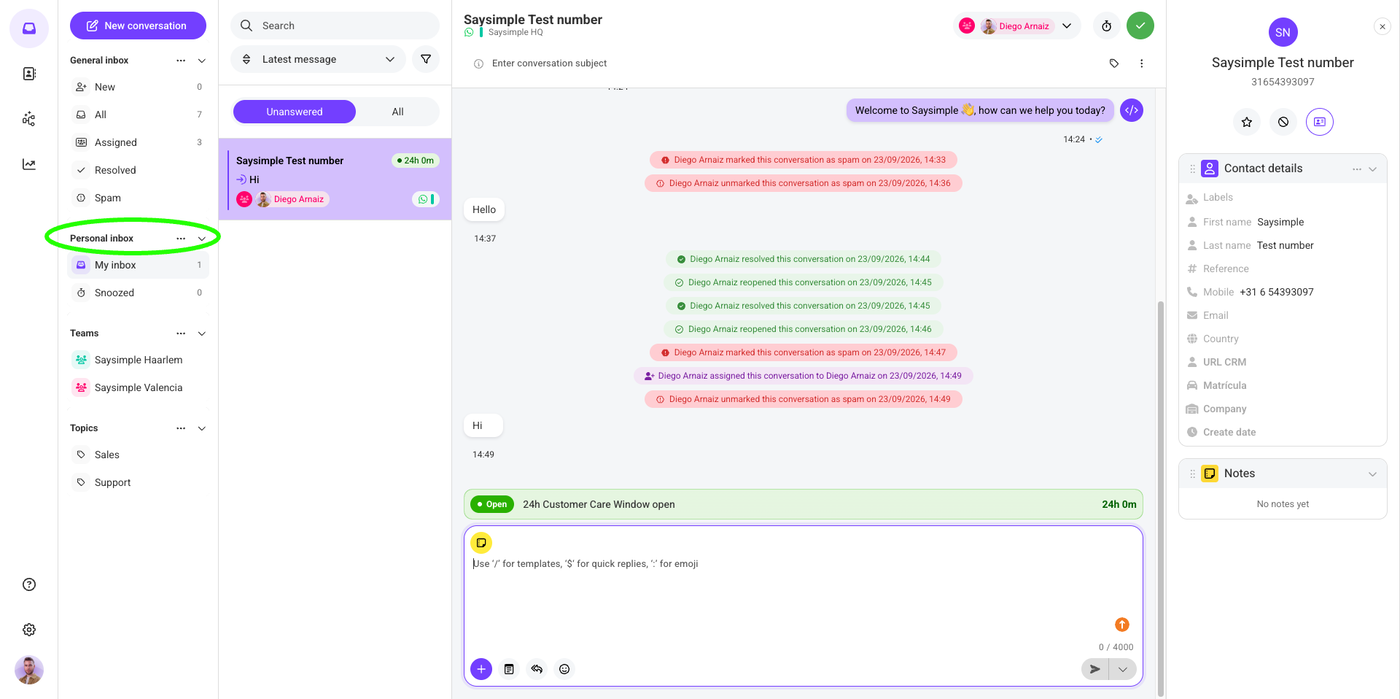
Personal Inbox
Once the conversation has been assigned to you, you handle your personal conversations from your Personal Inbox. Mind that it is also divided into two columns: Unanswered and All.
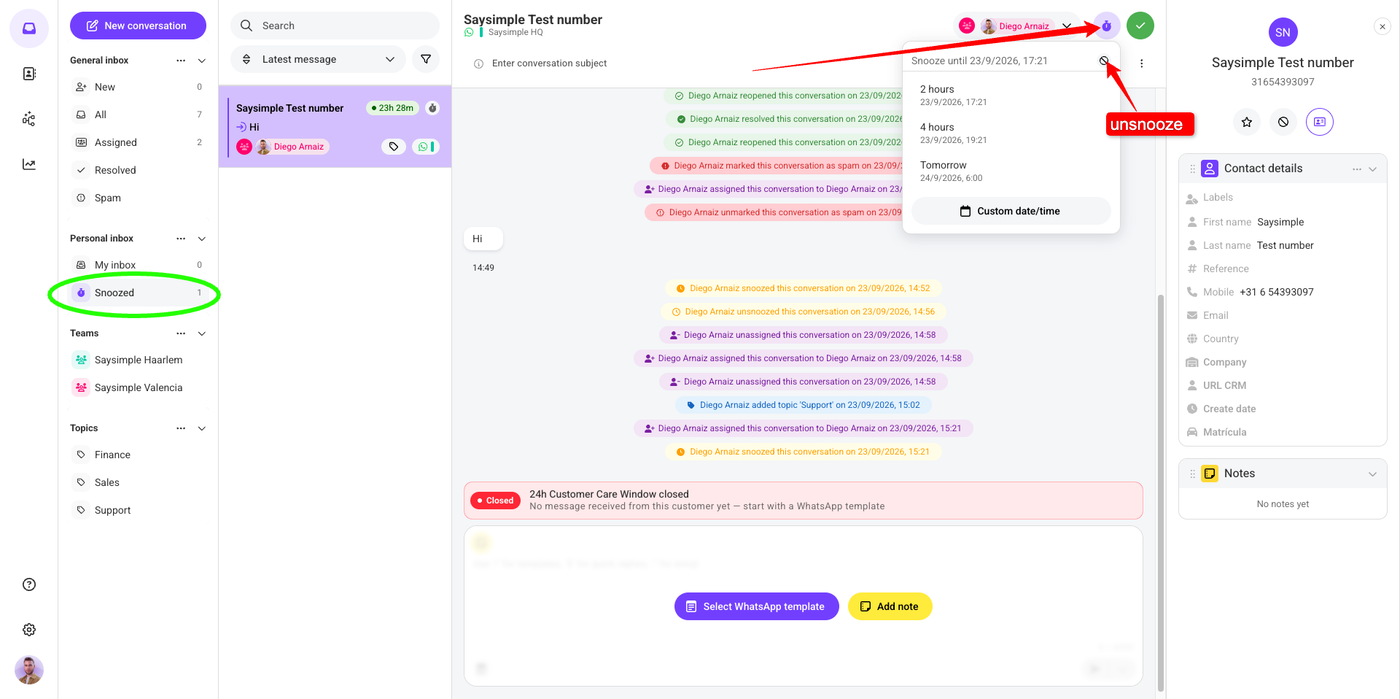
Personal Inbox: Snooze
You might want to postpone or snooze a conversation so it doesn't bother you for some time because you will handle it later. You can snooze it, and it will disappear temporarily from your inbox and pop up again when you choose, in 2 hours, in 4 hours, tomorrow, for example.
You can also unsnooze it when needed from the same icon.
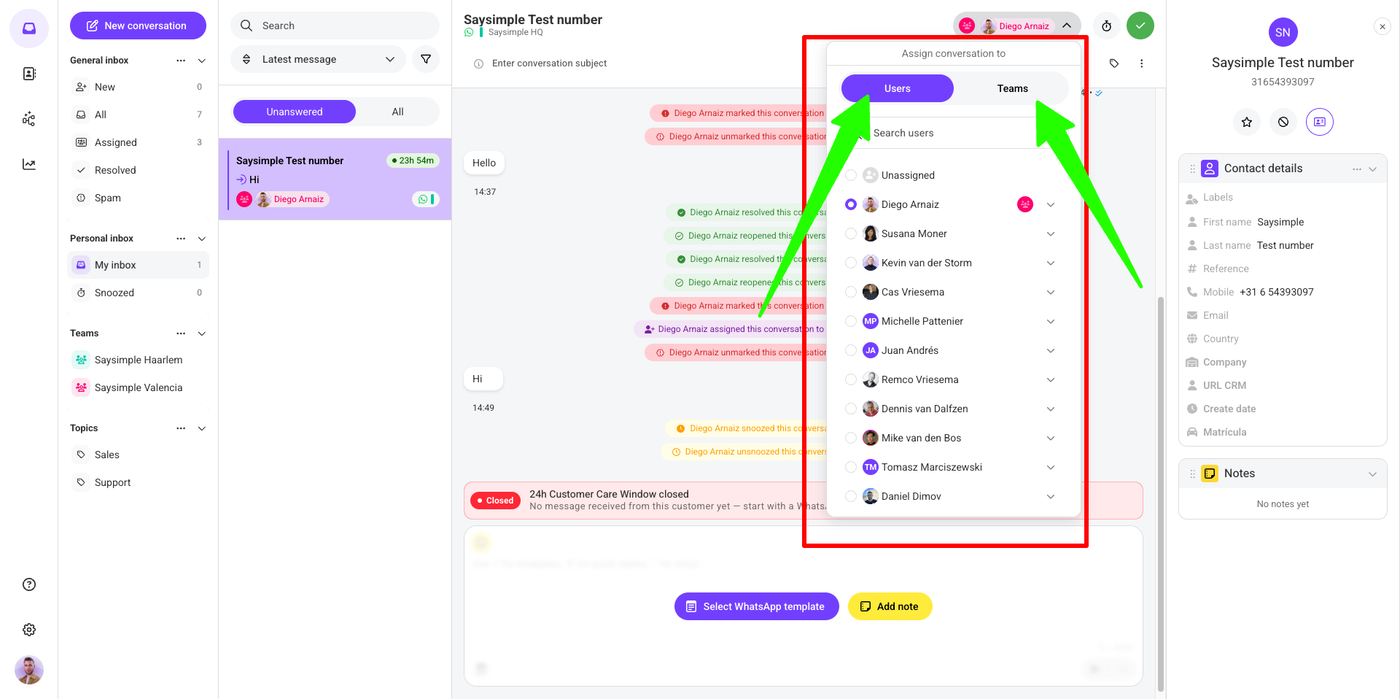
Assign a conversation to a User or Team
You can assign a conversation to yourself, but also to other users or teams, by clicking on the top of the conversation and selecting the user or team, or even a user within a team.
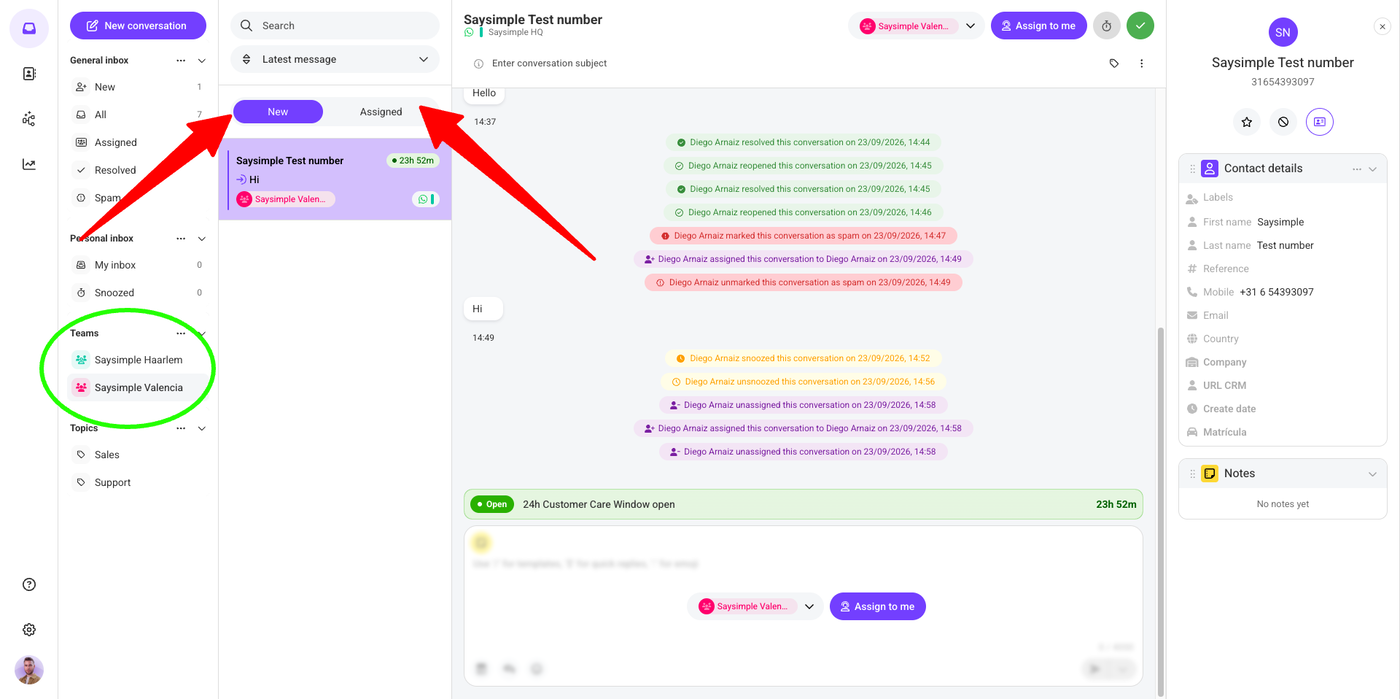
Teams
You can assign a conversation to a team, in this example Saysimple Valencia.
This section is divided into two sections:
New: Assigned to the whole team.
Assigned: Assigned to a specific user who belongs to the team.
‼️Mind that teams are created beforehand by an admin in the Settings.
Topics
Topics help you organize and categorize your conversations by topic, based on what the conversation is about at that moment.
In this example, my conversation is about support. I take care of support matters, and therefore it is really useful for me to have this categorized.
Your topics can be assigned on top of the conversation, and they are created by an admin in the settings beforehand.
Mind that a topic by default disappears once the conversation is resolved, unless it is created in the settings as a “Sticky topic”. In that case, it will stick to the conversation permanently.