

Managing users in Saysimple allows you to control who has access to your workspace, assign roles, organize users into teams, and manage permissions. Only users with the Admin or Manager role can invite, edit, deactivate, or reactivate users.
To manage users, go to Configuration → People → Users.
Invite a New User
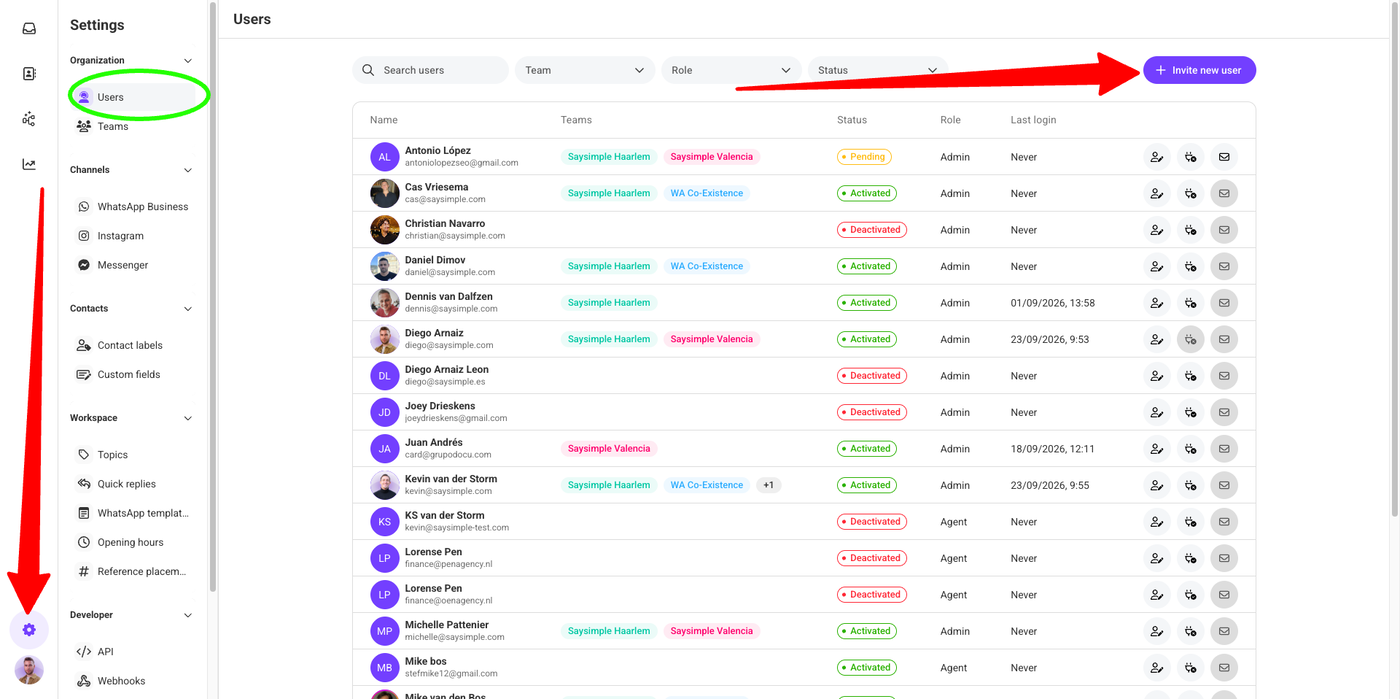
Adding a new user is quick and allows them to start collaborating in Saysimple immediately.
To invite a new user:
Go to Configuration → People → Users.
Click + Invite new user in the top-right corner.
Enter the user's details.
Assign the appropriate Role and Team(s).
Click Invite.
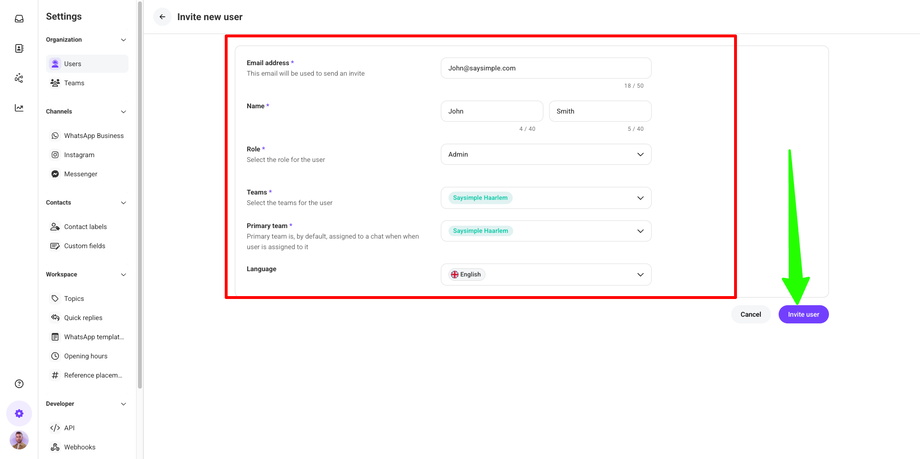
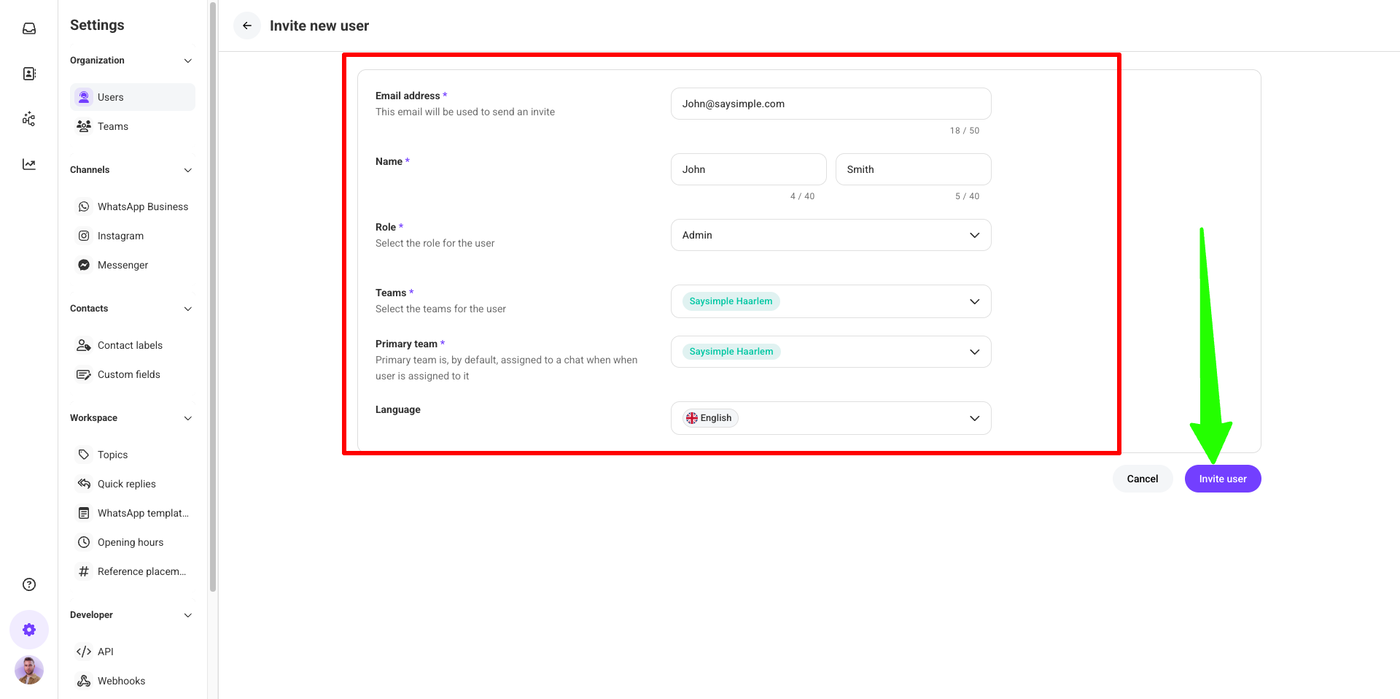
The user will automatically receive an activation email at the email address provided. Once activated, they can log in and start using Saysimple.
Edit a User
You can update a user's information at any time, including their assigned teams and permissions.
To edit a user:
Go to Configuration → People → Users.
Locate the user in the list.
Click the Manage user icon (👤✏️).
Update the required information.
Save your changes.
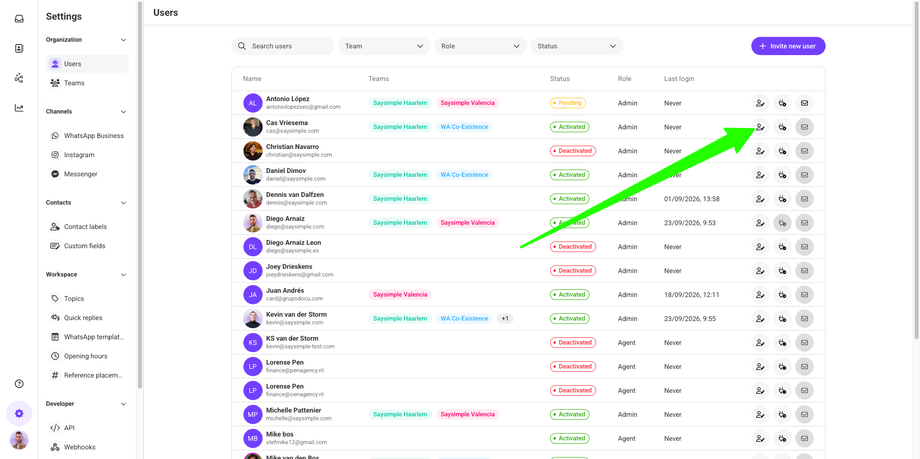
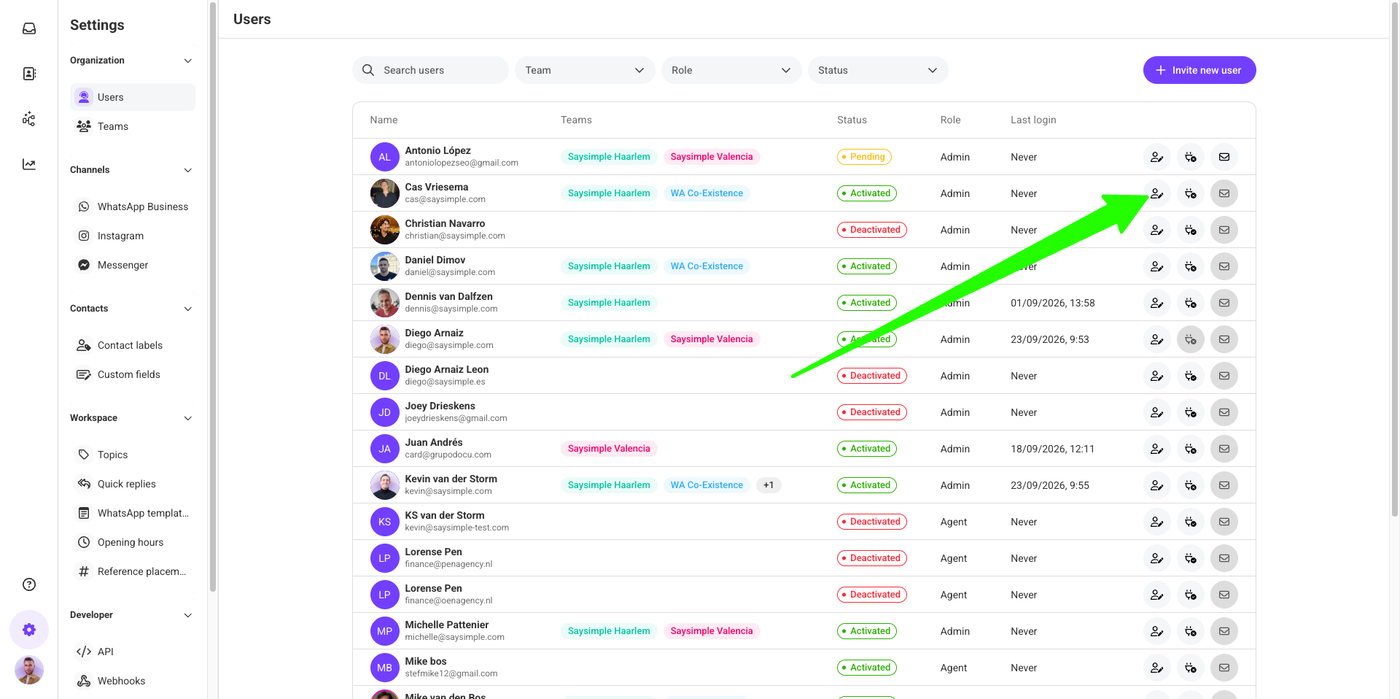
You can modify details such as:
User role
Assigned teams
User information
Access permissions
Deactivate a User
When an employee leaves your organization or no longer requires access, you can deactivate their account without deleting their information.
To deactivate a user:
Go to Configuration → People → Users.
Find the user.
Click the Deactivate user icon (👤❌).
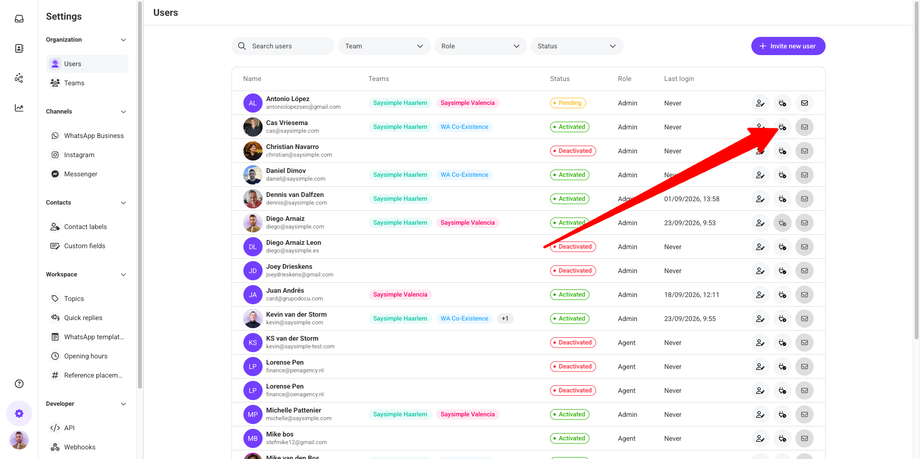
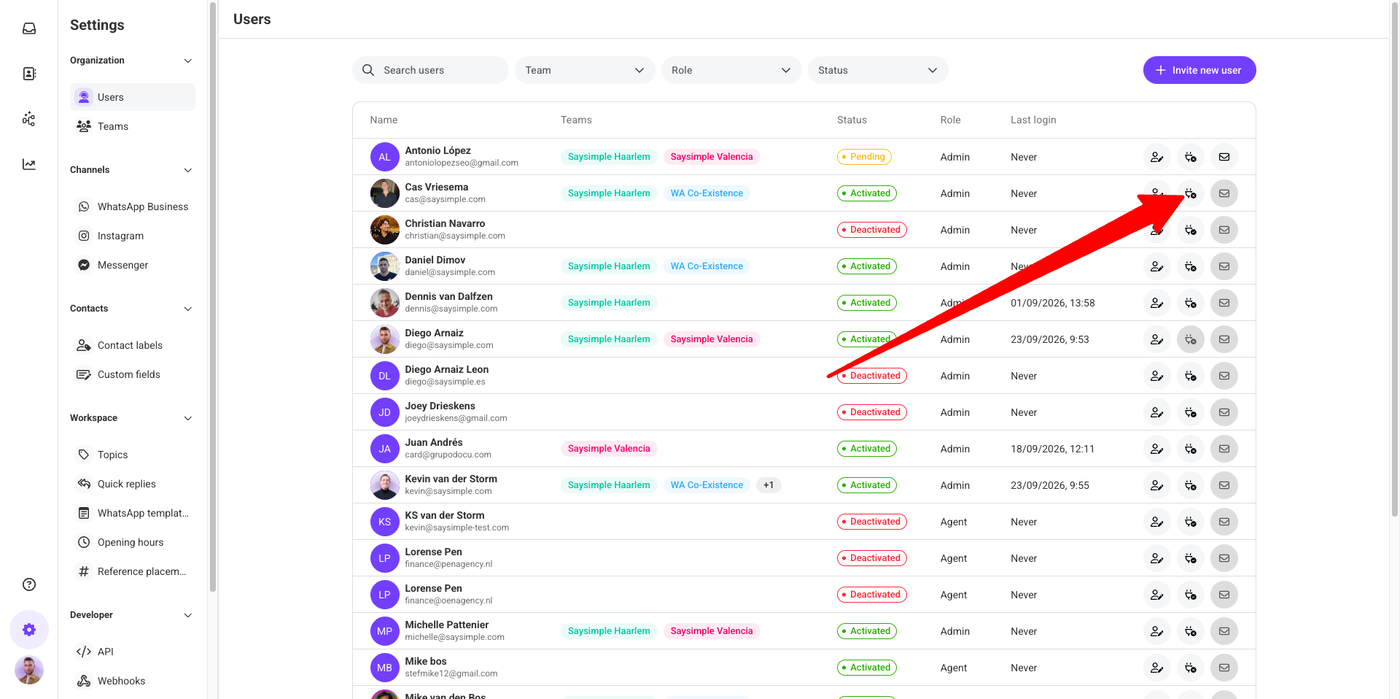
The user will no longer be able to access Saysimple. Their account information remains available and can be reactivated later if needed.
Resend the Invitation Email
If a user hasn't activated their account, you can send a new activation email.
To resend an invitation:
Go to Configuration → People → Users.
Locate the user.
Click the Resend invitation icon (✉️).
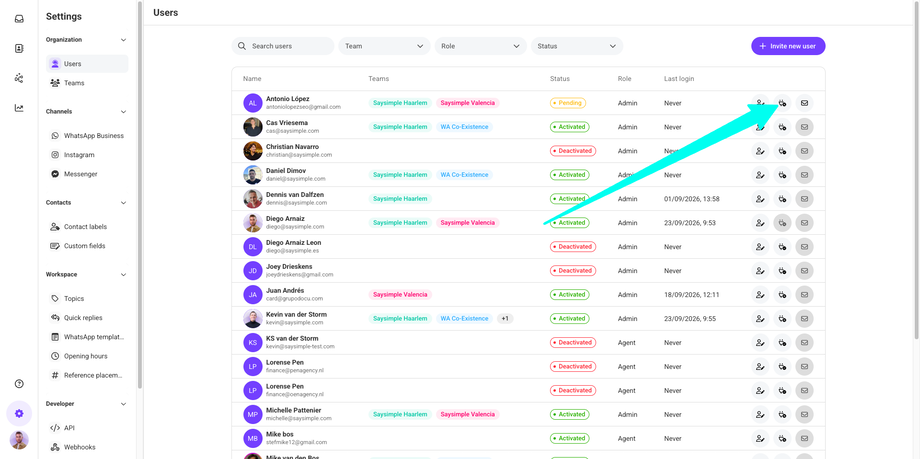
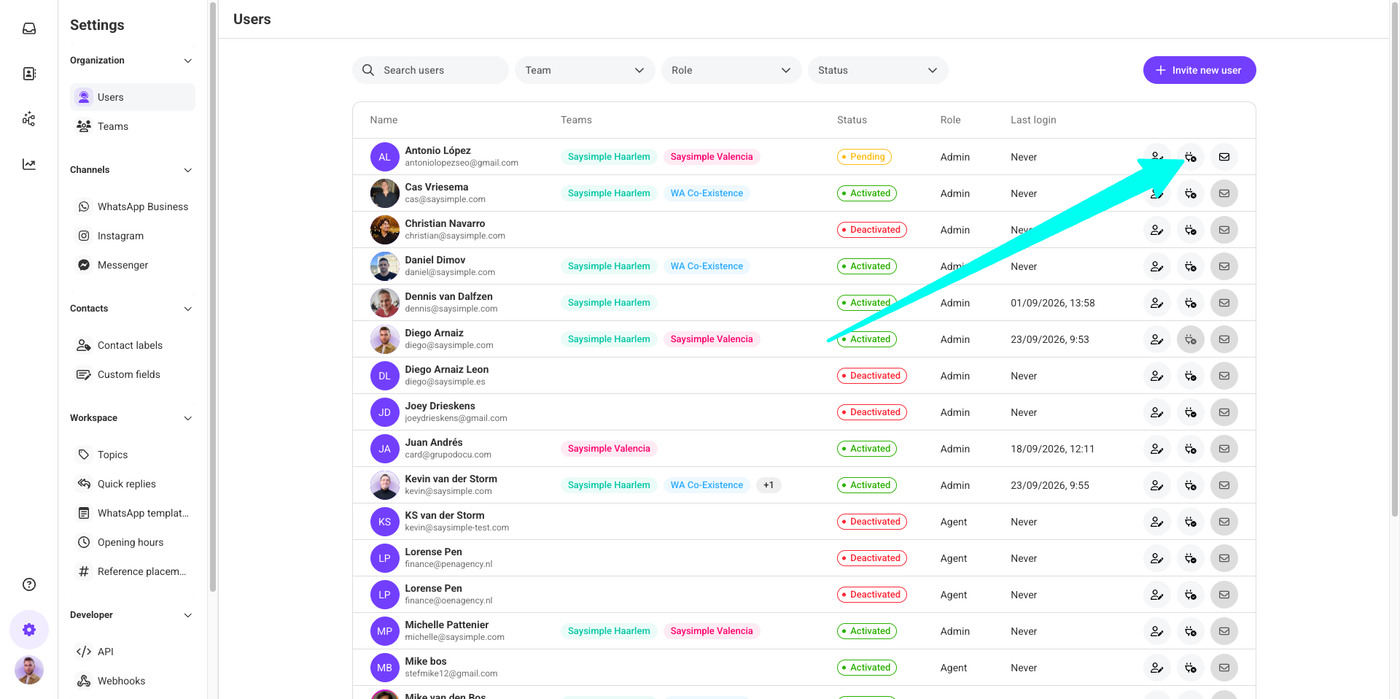
A new activation email will immediately be sent to the user's registered email address.
Best Practices for User Management
To keep your workspace secure and organized:
Assign users to the correct teams.
Grant only the permissions required for each role.
Deactivate users who no longer need access.
Regularly review user roles and permissions.
Keep user information up to date.
Proper user management improves security, collaboration, and operational efficiency across your organization.
Frequently Asked Questions
Who can add or remove users?
Only users with the Admin role can invite, edit, deactivate, or reactivate users.
Can I permanently delete a user?
No. Users are deactivated rather than permanently deleted, allowing their information to be retained for auditing or future reactivation.
Will a new user receive an email invitation?
Yes. Every invited user automatically receives an activation email containing the instructions to activate their Saysimple account.
Can I assign users to multiple teams?
Yes. Users can belong to one or more teams depending on your organization's structure.
Need Help?
If you need assistance inviting users, assigning roles or teams, managing user access, or troubleshooting activation issues, the Saysimple Support team is happy to help.
When contacting Support, please include the user's email address and a brief description of the issue so we can assist you as quickly as possible.