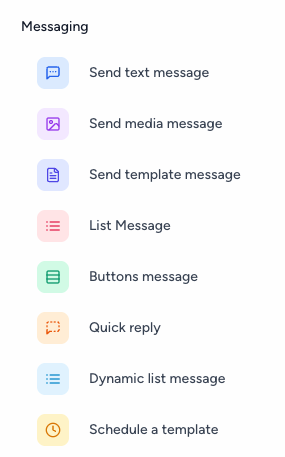
The Messaging section contains the most commonly used actions for building a flow. These actions allow you to send different types of messages and give customers options to interact with your flow.
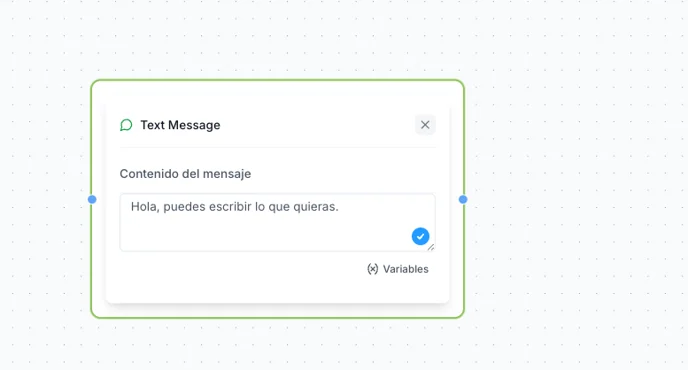
2.1 Send Text Message
Use Send Text Message to send a text message to the customer.
Enter the message you want the customer to receive. You can use this action to provide information, ask questions, give instructions, or continue the conversation.
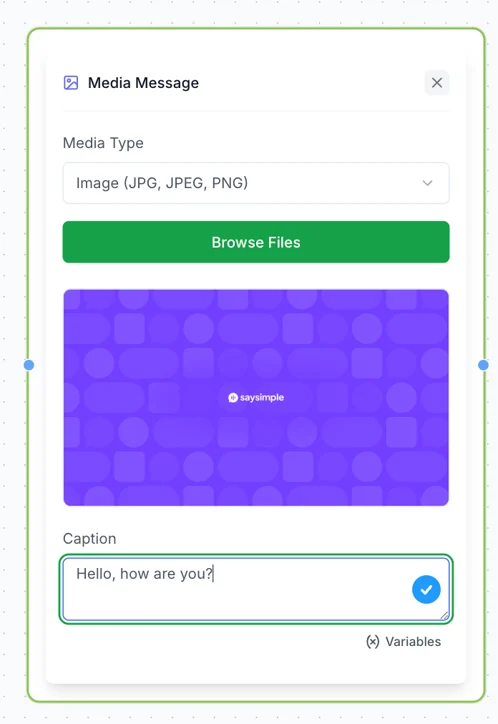
2.2 Send Multimedia Message
Use Send Multimedia Message to send a message together with a media file.
You can send:
Images: JPG, JPEG, or PNG
Videos
Documents: PDF
Audio: MP3, WAV, or OGG
2.3 Send Template Message
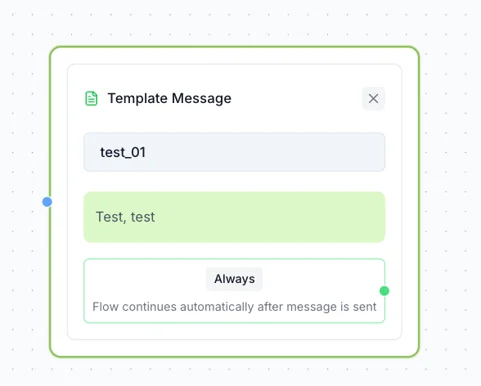
Use Send Template Message to send a WhatsApp template that has been approved by Meta.
Select the template you want to send when the customer reaches this step in the flow.
You can also add variables to your template when required.
Note: Only templates that have been approved by Meta can be sent.
2.4 List Message
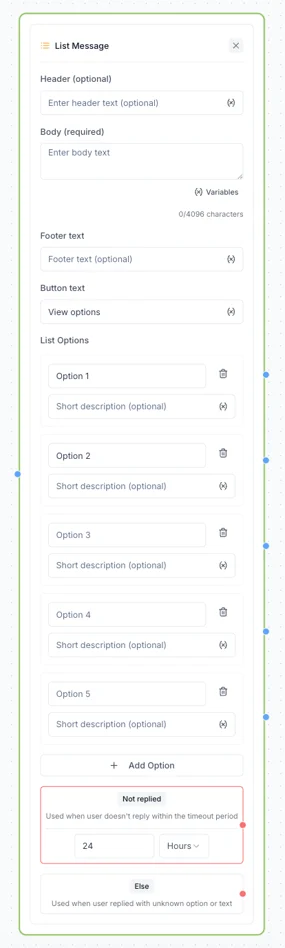
Use List Message when you want customers to choose from a list of options. This is particularly useful when you need to offer more than 3 choices.
Configure the following:
Body: Enter the question or message you want to show the customer.
Buttons: Add the options the customer can choose from. Each button can contain up to 24 characters.
You can also configure two additional paths:
No response
Defines what happens if the customer doesn’t respond within the time you specify. You can set a delay in hours, minutes, and seconds, and then connect this path to the next action, such as sending a message or ending the flow.
Otherwise
Defines what happens if the customer responds with something other than one of the available options.
2.5 Button Message
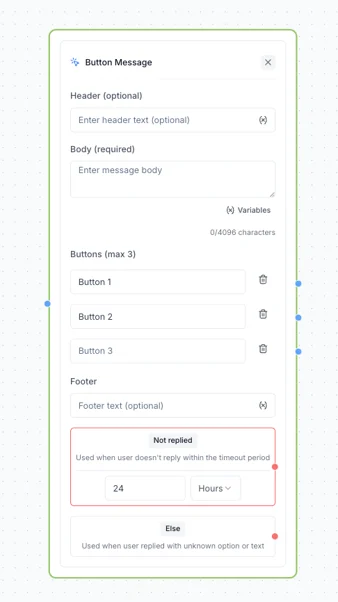
Use Button Message when you want to offer a short list of choices. This option is ideal when you have up to 3 options for the customer to choose from.
Configure the following:
Body: Enter the question or message you want to show the customer.
Buttons: Add the options you want to offer. Each button can contain up to 24 characters.
Just like with List Messages, you can configure two additional paths:
No response
Defines what happens if the customer doesn’t respond within the time you specify.
Otherwise
Defines what happens if the customer responds with something other than one of the available options.
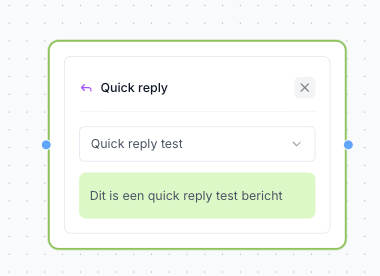
2.6 Quick Reply
Use Quick Reply to send one of the Quick Replies you have already created in Saysimple.
Select the Quick Reply you want to use, and the customer will automatically receive its configured message when they reach this step in the flow.