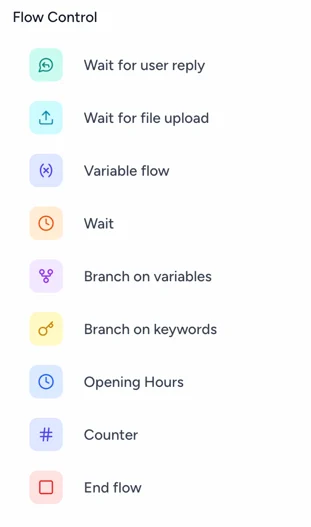
The Flow Control section contains actions that control how your flow behaves. You can use these actions to collect information from customers, create different paths, add delays, check conditions, and control when a flow ends.
3.1 Wait for User Reply
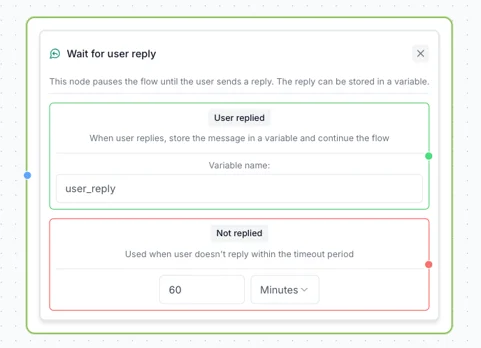
Use Wait for User Reply when you need the customer to provide information before the flow continues.
For example, you can ask the customer:
“What is your name?”
“What is your company name?”
“What date would you prefer?”
The action has two possible paths:
Green connector: The customer replies within the configured time. Connect this path to the next step in your flow.
Red connector: The customer does not reply within the configured time. Connect this path to the action you want to take next.
Common actions for the No response path include Archive conversation, End flow, or sending the customer the question again.
You can also use a Counter to limit how many times the flow asks the customer to respond. See Counter below for an example.
3.2 Wait for File Upload
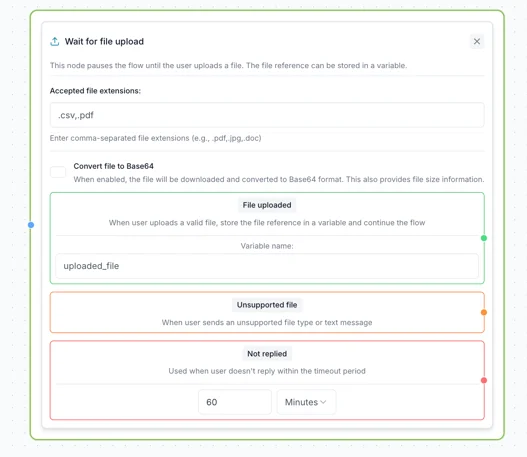
Use Wait for File Upload when you want the customer to upload a file.
You can specify which file types are accepted and configure a fallback path for unsupported file types.
Base64-encoded files are also supported.
3.3 Variable Flow
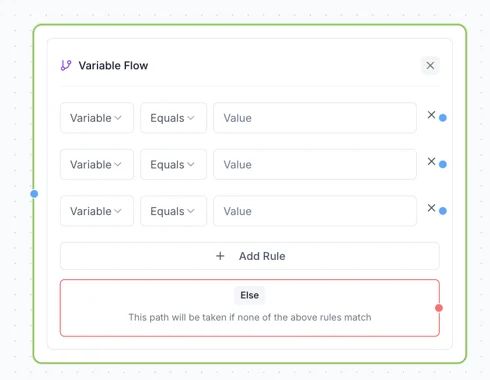
Use Variable Flow to create different paths based on the value of a variable.
You can define conditions for the variable and configure an Else path for cases where none of the conditions are met.
3.4 Wait
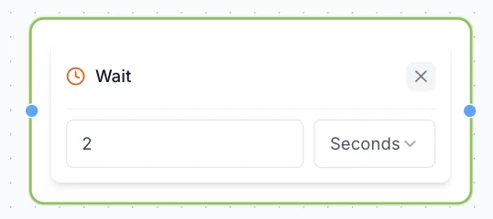
Use Wait to add a delay between two steps in your flow.
You can set the delay in:
Seconds
Minutes
Hours
For example, you could wait 5 minutes before sending a follow-up message.
3.5 Variable Branch
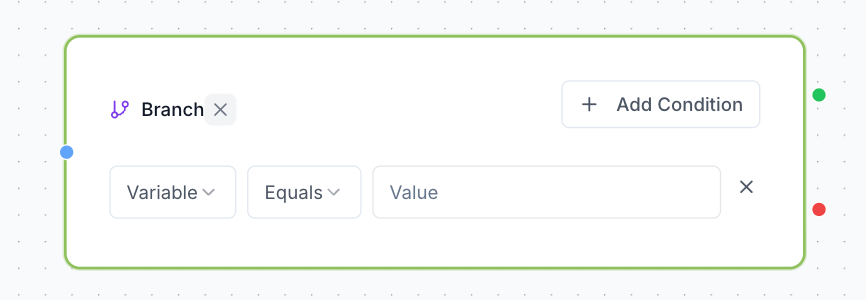
Use Variable Branch to create two possible paths based on the value of a variable:
Match: The variable matches the value or condition you specified.
Non-match: The variable does not match.
This is useful when you want the flow to take one path when a condition is met and another when it isn't.
3.6 Keyword Branch
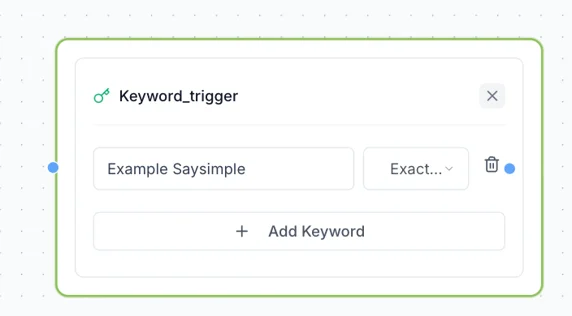
Use Keyword Branch to create a path that is triggered when the customer enters a specific keyword.
For example, if you set the keyword to “Saysimple”, the flow will follow this branch when the customer enters that keyword.
You can also use a keyword as a flow trigger at the beginning of a flow. This can be useful for testing a flow internally without triggering it for every incoming message.
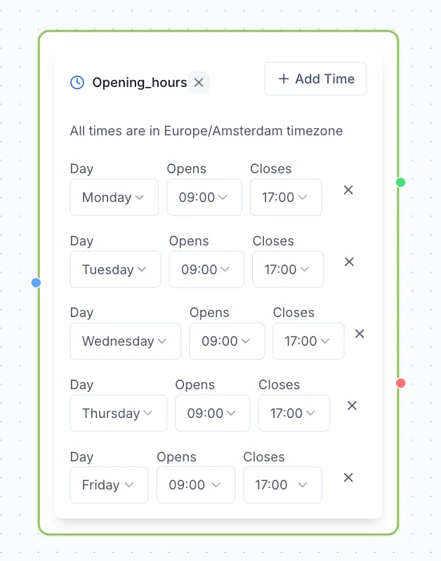
3.7 Opening Hours
This option allows you to set working hours for interaction between the flow and the customer.
You can add specific days and adjust the time range as needed.
If the customer sends a message within the configured time frame, the green connector will continue to the next step.
If the customer messages outside of the configured hours, the red connector will continue to the next step.
3.8 Counter
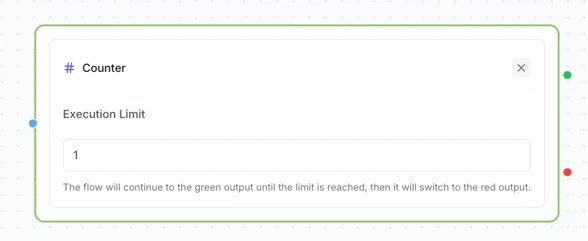
Counter lets you limit how many times a flow can repeat a specific path.
This is particularly useful when you want to send a reminder and then either repeat a question or end the flow after a certain number of attempts.
Example
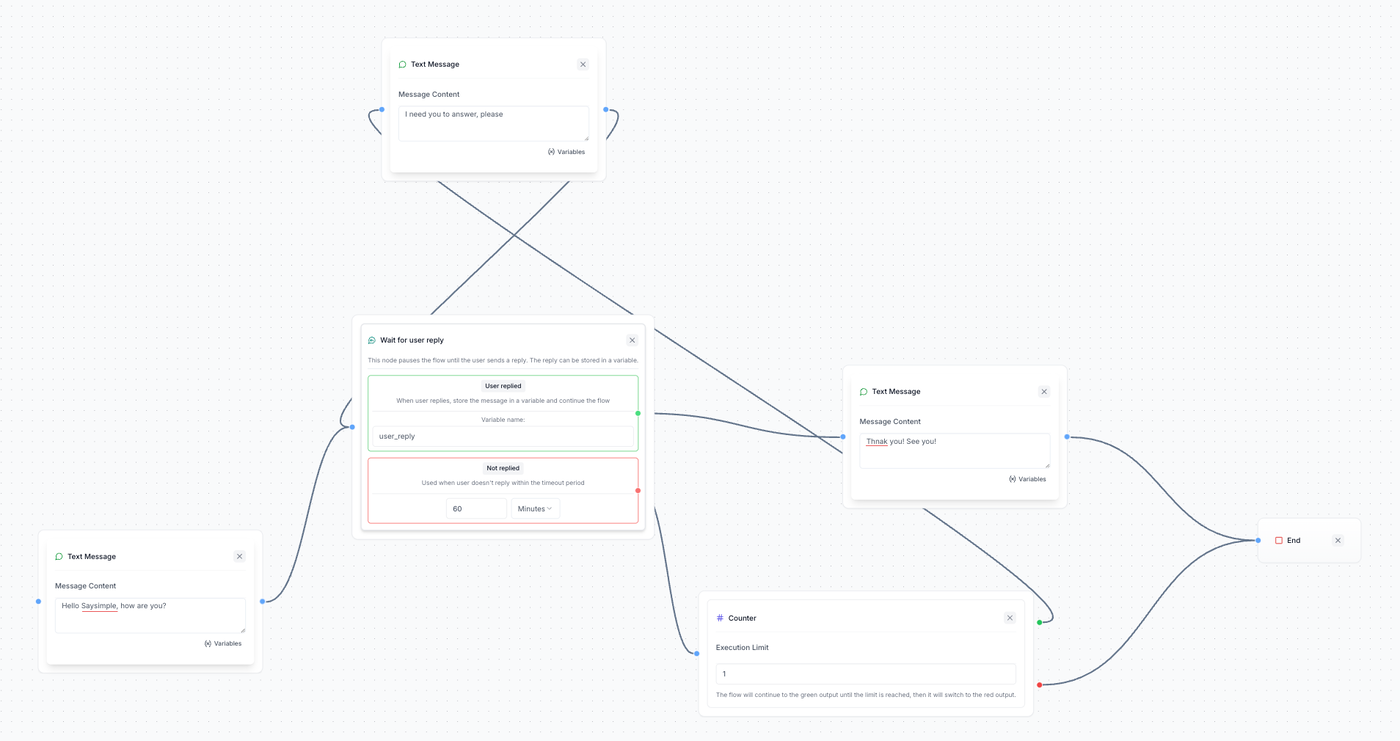
Imagine you ask the customer:
“Hi, how are you?”
You then use Wait for User Reply with a 5-minute timeout.
If the customer doesn't respond, the flow follows the red connector to the Counter.
With a limit of 1:
The Counter detects the first missed response and follows the green connector.
You can connect this to a reminder such as:
“Please answer the question to continue.”The flow then returns to the original question.
If the customer still doesn't respond after another 5 minutes, the Counter detects the next attempt and follows the red connector.
You can connect this path to End Flow or another action.
This prevents the flow from repeatedly asking the same question indefinitely.
3.9 End Flow
Use End Flow to stop the automated flow.
Once this action is reached, the bot stops interacting with the customer. The conversation is not automatically assigned to an agent and is not archived.