In this article, we explain how to delete a contact in the Saysimple platform. Deleting a contact helps keep your contact overview organised and removes contact details that are no longer needed.
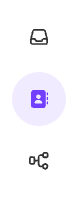
Navigate from the inbox to the contact page via the menu on the left side.
Choose the right contact list.
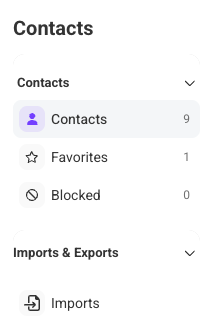
The menu on the left shows the different contact types. By default, the overview with all contacts opens automatically.
If needed, you can use this menu to switch between:
All contacts
Favorites
Blocked
This helps you find the right contact more quickly, especially when you have many contacts.
Find the contact you want to delete.
Use the search bar to look up a specific contact. The available filters in the top bar help narrow down the overview, so you can find the right contact more easily. <Link to article how to filter + custom labels?>
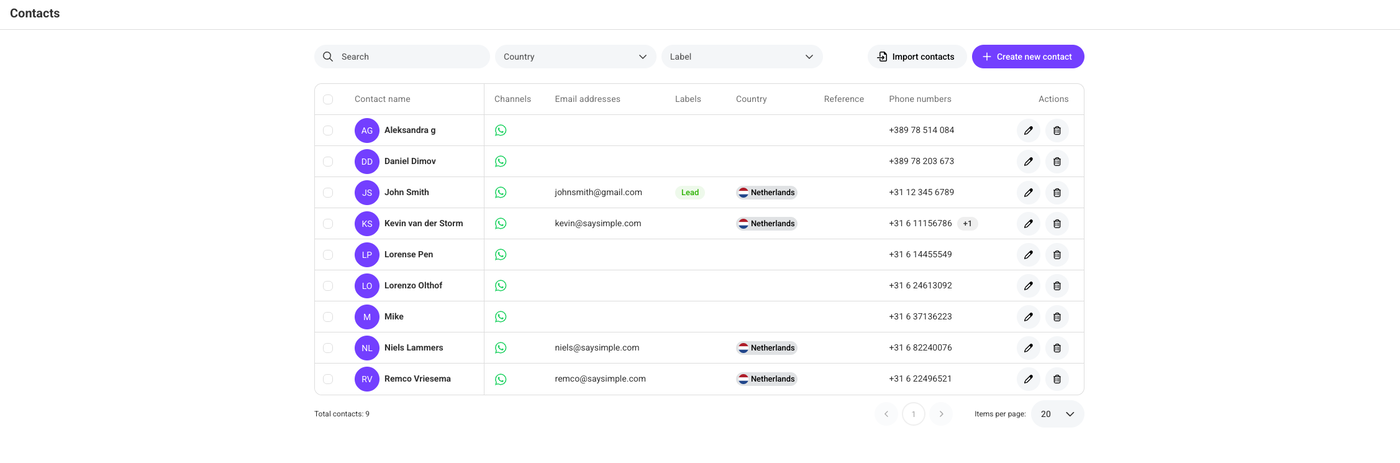
From here, there are two ways to delete the selected contact:
Click the trash icon next to the pencil icon
Open the contact details and delete the contact from there
We recommend using the second option, as it helps make sure the correct contact is deleted.
Please note that deleting a contact cannot be undone!
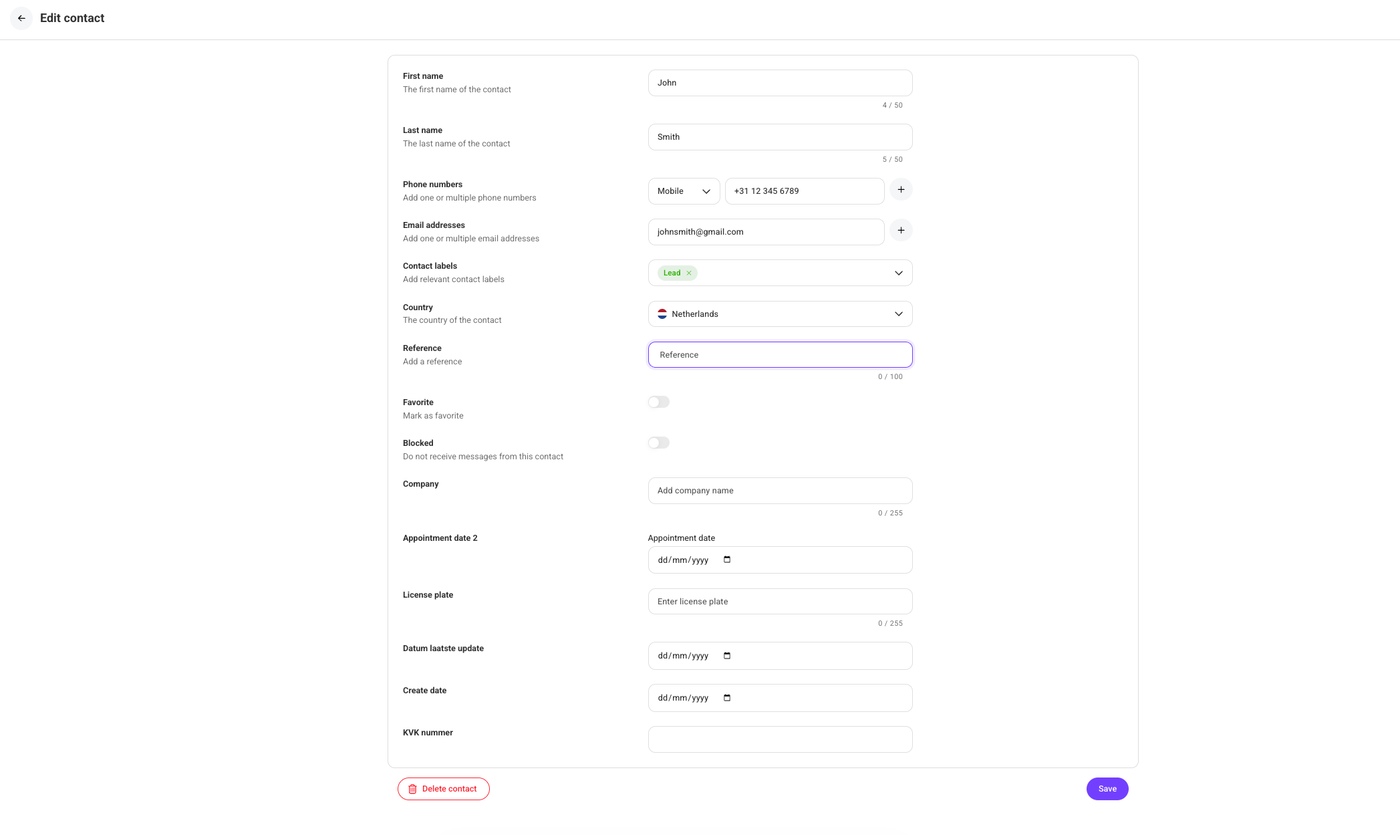
Open the edit form.
Click the pencil icon on the right side of the contact, under “Actions.”

Delete the contact details.
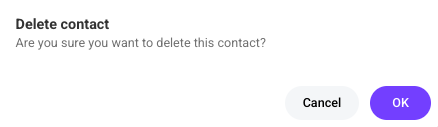
Click “Delete contact” on the bottom left of the contact details, a confirmation pop-up will then appear.
Click “OK” to permanently delete the contact.