

In this article, we explain how to block a contact in the Saysimple platform. Blocking a contact helps prevent unwanted communication and keeps your contact overview manageable.
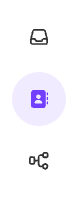
Navigate from the inbox to the contact page via the menu on the left side.
Choose the right contact list.
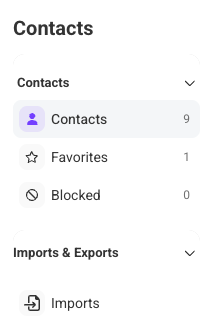
The menu on the left shows the different contact types. By default, the overview with all contacts opens automatically.
If needed, you can use this menu to switch between:
All contacts
Favorites
Blocked
This helps you find the right contact more quickly, especially when you have many contacts.
Find the contact you want to block.
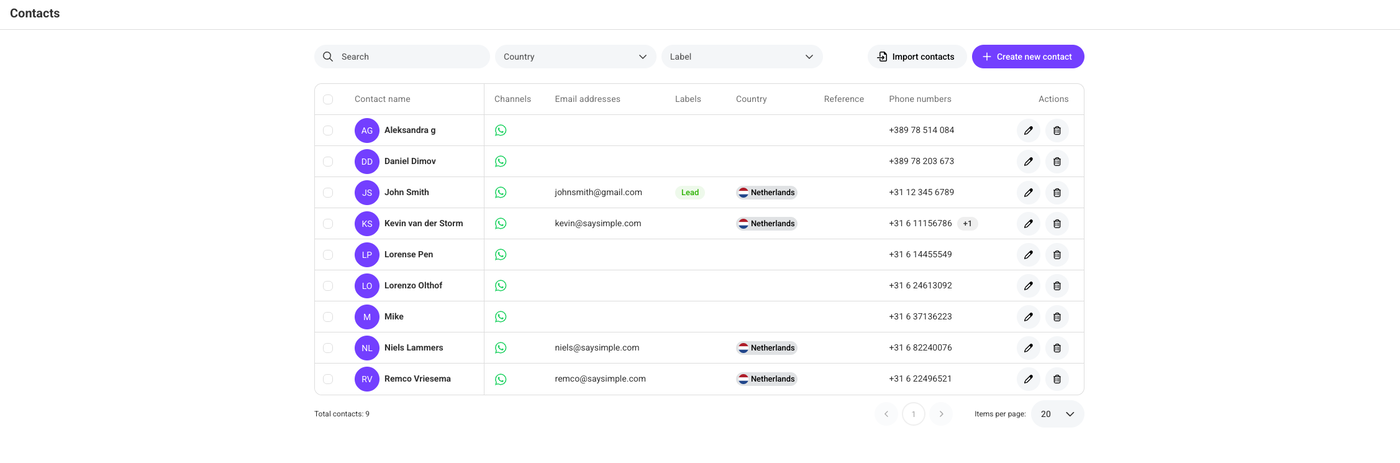
Use the search bar to look up a specific contact. The available filters in the top bar help narrow down the overview, so you can find the right contact more easily.
Open the edit form.
Click the pencil icon on the right side of the contact, under “Actions.”

Block the contact.
In the middle of the form, enable the “Blocked” option to block the contact.
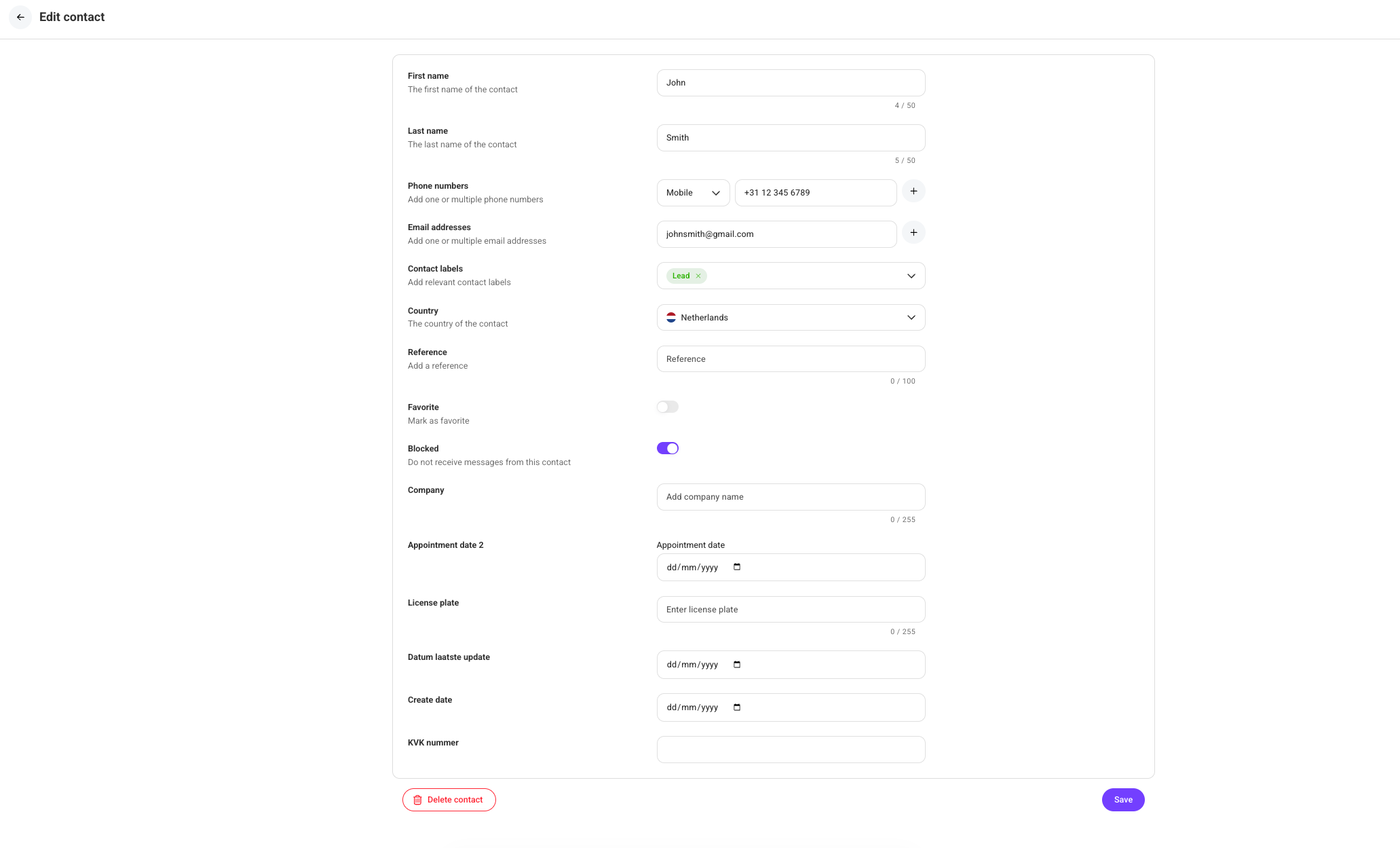

Don't forget to click the “Save” button once you have finished blocking the contact.
After this, you will no longer receive messages from this contact in the Saysimple platform. The contact will also be visible in the “Blocked” contact overview, as mentioned in step 2, alongside “All contacts” and “Favorites.”
